Ultima User Guide (c) Copyright by PaxeraHealth Corp. 2021
8.0.0. Study Viewer
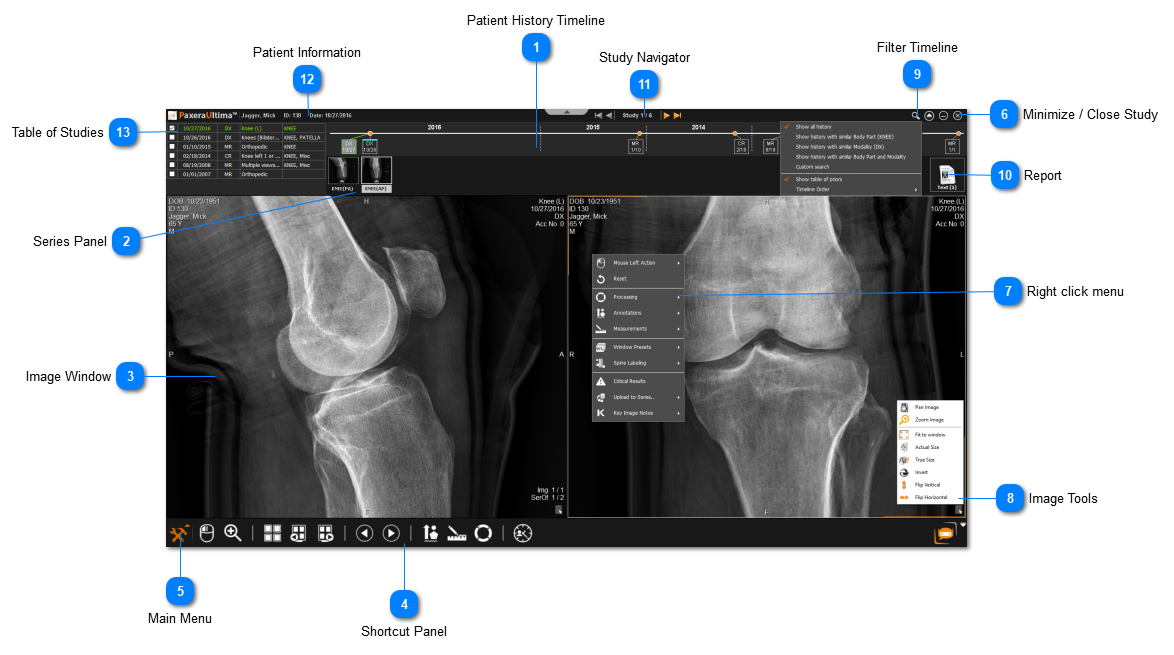
The study viewer is opened when you open a study. Below is an overview:
Patient History Timeline
The patient history timeline shows a full previous of all the patients current and prior studies
Each block represents a study and shows the modality type and date
The green block indicates that the study is open
To add a study to view (i.e. for current/prior comparison) simply drag in a second block from the patient timeline into the image window - the study will be added & the view will be split to see both the current & prior
To view only one study - simply double click on the block of interest from the patient timeline
Series Panel
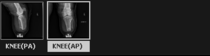
The series panel shows all of the series in the study
Drag in a series from the series panel into the image window to view it
MRI, CT, US and some other studies may contain multiple images in one series
Image Window
The number of image windows shown on each monitor is completely customizable
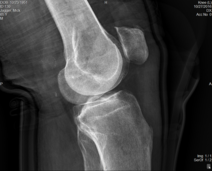
The image window is used to view an image
Shortcut Panel
The shortcut panel is fully customizable and contains all the tools that the user needs easy access to.
Main Menu
In the bottom left corner of the screen is a Orange toolbox button - this gives the user access to the main menu which shows all the tools avaiable in Ultima.
Minimize / Close Study
Used to minimize the viewer or close the study.
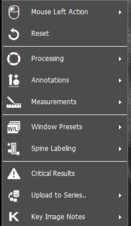
Right click menu
Additional options are avaiable when the user right clicks on the image, as shown below:
Image Tools
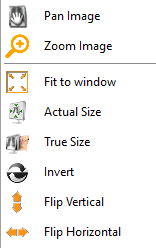
In the bottom right corner of every image window is a small button that gives the user access to an set of Image Tools, as shown below:
Filter Timeline
The user can filter the timeline to have it show studies according to similar anatomy, modality, or both. Use the drop down menu to filter the timeline and you can also change the order from ascending/descending.
Report
Enables the user to acess the report from the study viewer.
Study Navigator
The study navigator enables users to switch between studies that are loaded in the WorkList.
Patient Information
Basic Patient & Study information given:
Table of Studies
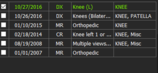
The table shows all studies for the patient. You can check off another study from the table to make a current/prior comparison.