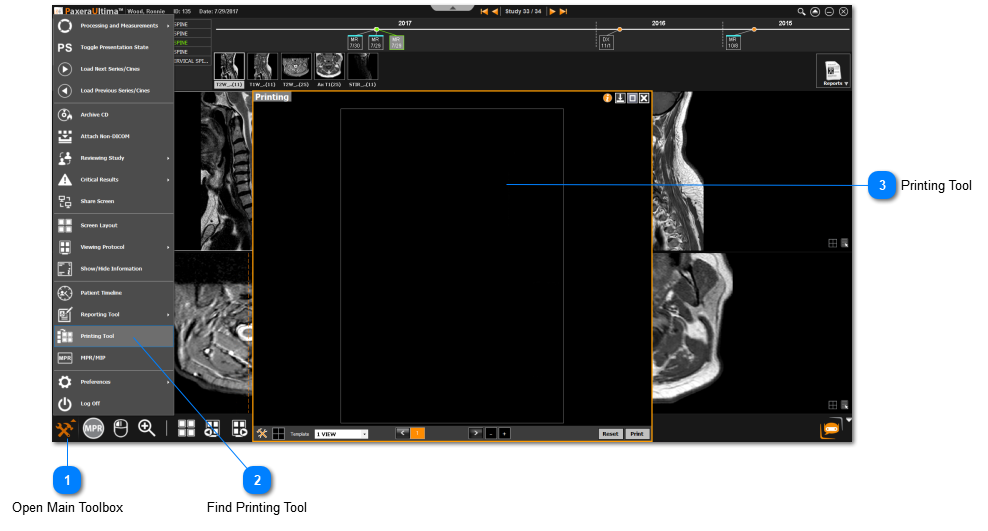
In this section the user will learn how to use the printing tool. The printing tool is used to create a hard copy of a selection of images - images can be printed to DICOM or normal computer printers. The film can be printed if the workstation is connected to a DICOM laser
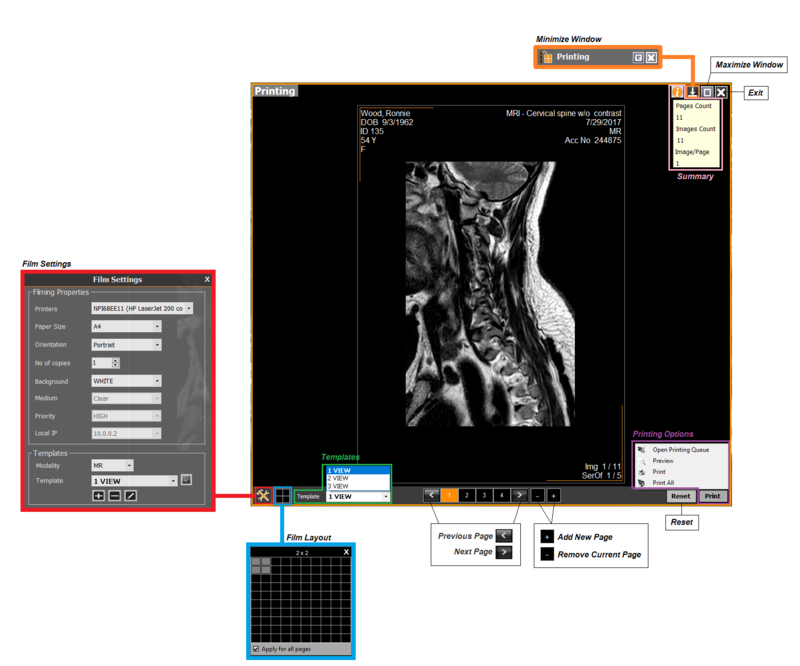
• Series panel - displays all the series in the study, drag & drop into film layout window
• Patient timeline - displays the timeline of the patients studies
• Film layout - shows how the film will look like
• Film information - displays some of the basic film information
• Film settings - enables the user to edit the properties of the film to be printed; choose the template and the modality of the template; add/edit/delete templates
• Windows layout - enables the user to change the number of image windows on the film
• Load template - enables the user to load a film template
• Film page navigation - switch between film pages (if there is more than one)
• Add/remove film pages - used to add or remove film pages
• Reset/print film - clear the film of all images, and print the film
 Add DICOM printer
 To learn how to add a DICOM printer, click here.
How do I send images to the printing tool?
-
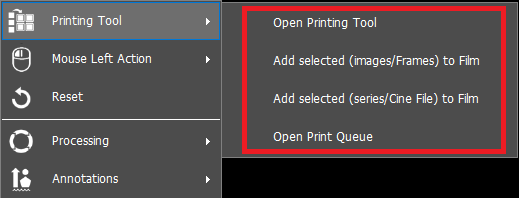
Select all the images of interest in the study viewer, right click and select ‘Printing Tool’ from the dropdown list.
-
Choose how you want to print your films and the images/series will appear in the printing tool.
-
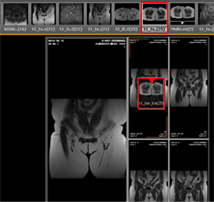
Alternatively, you can insert images / series into image windows: drop & drag any series from the series panel into the image windows of the film:
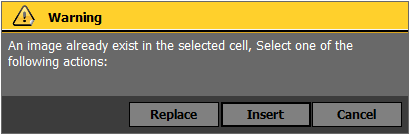
 If a series is being placed in an image window that already contains an image, a window will appear to ensure that the image should be replaced, as shown below:
How do you open a template?
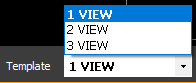
Select the template of interest from the list located in the bottom left corner of the filming tool screen:
Click here to learn how to edit / add / delete templates.
How do you change the printing layout?
There are two ways to adjust the number of windows in the filming tool:
-
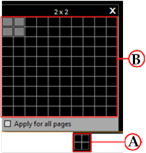
Click on the ‘Change layout’ button (A) located in the bottom left corner of the filming tool screen and choose the number of windows (B):
-
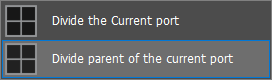
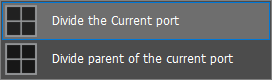
Right click on any image from the film window and select ‘Divide parent of the current port’ and then choose the number of windows:
-
Adjust number of sub-windows: right click on the image window for which sub-windows need to be created from in the filming tool screen and select ‘Divide the current port’ and then choose the number of windows
How do you reset the film?
Click on the ‘Reset’ button located in the bottom right corner of the filming tool screen to clear the current film: 
How do you add or remove film?
Click on the ‘+’ to add, and the ‘-’ to delete a film, both of these buttons are located on the bottom middle portion of the filming tool screen: 
How you you print the film?
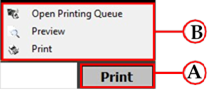
Click on the ‘Print’ button (A) located in the bottom and then choose to view the printing queue, pre- view the film, or print the film (B) :
Click here to learn how to access the film printer settings
How do you switch between multiple films?
If more than one film has been created for the study, the user can navigate between them by clicking on the arrows or the page number, located on the bottom middle portion of the film window, as shown below: