In this section the user will learn about the patient timeline feature. The patient timeline is used to view the history of images acquired from the patient; shown by a timeline that indicates all the patients past studies, along with study dates and modality.
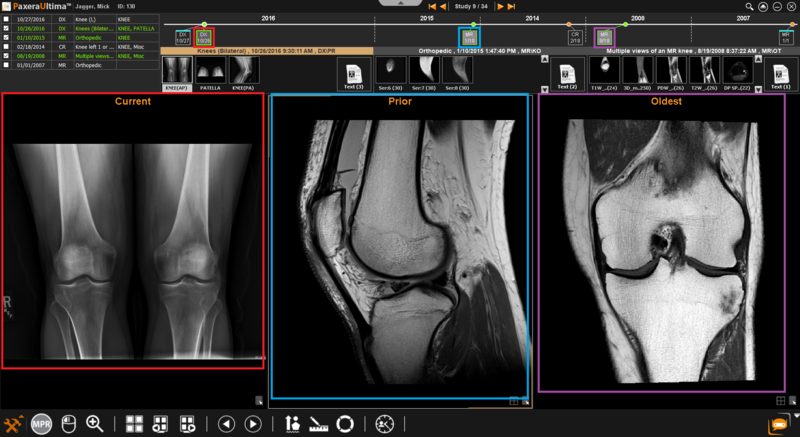
If a study is opened whereby the patient has multiple studies acquired at different times, the patient timeline panel will automatically be shown in the study viewer, as shown below:
» Each block in the patient timeline panel indicates a study and contains the modality and date of the study (i.e. MR, 12/30). 
» The blocks shown in green show the studies currently in view. 
How do I view a single study?
Double click on a study block of interest to view only that study in the study viewer.
How do I view multiple studies simultaneously?
Drag and drop the study block of interest into the study window of interest. Shown below is an example:
 Advanced Patient Timeline
 To access the advanced view of the patient timeline or if the patient timeline is not shown in the study viewer - follow the instructions below:
To access the advanced view of the patient timeline, follow the instructions below:
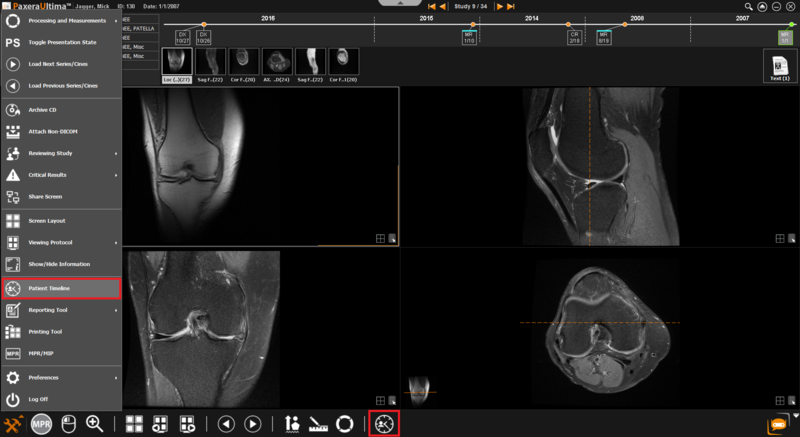
1. From the study viewer, click on the ‘Toolbox menu button’ located in the bottom left corner of the screen.
2. Click on the ‘Patient timeline’ button from the menu (you can also find this button on your shortcuts panel).
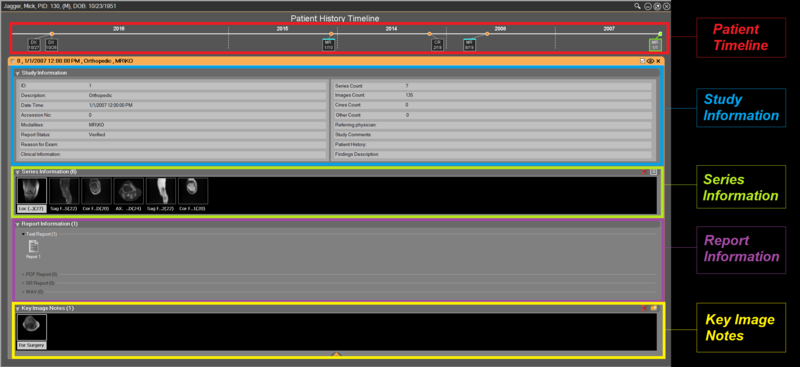
3. A new window will appear with an overview of the patient history timeline.
Timeline of Patient Studies
» To open study in patient timeline window, simply click on the study block of interest.
» To open study in study viewer, (1) double click on the study block of interest; or (2) drag the study block directly into an image window in the study viewer; or (3) click on the ‘eye’ button in the top right corner of the study panel: 
Basic View
» The basic study information will be shown in the patient timeline window when a study block is opened (see point above), it contains the basic study description along with the series information.
» To expand the view to see more study information about the study, click on the downward pointing arrow on the bottom of the panel: 
» To hide the study details from the patient timeline window, simply click on the ‘Hide’ button in the top right corner of the study panel: 
Advanced View
» The advanced view will show all the information in the study, including: study, series, and report information; and key note images.
» To reduce the view back to a basic view, click on the upward pointing arrow on the bottom of the panel: 
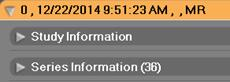
» The arrows next to the panel headings indicate if the panel is expanded  or reduced
» To expand/reduce a study panel; or the study, series, report, or key note image panels within a study; simply click on the heading:
Series Information Panel
» To delete a series - click on it from the series information panel, and then click on the red cross but- ton in the top right corner of the panel: 
» The series information can switch between two views: thumbnails  or tabular
  info. To switch the view, simply click on the icon in the top right corner of the panel:
Report information Panel
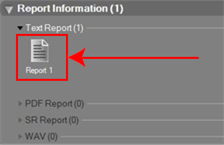
» All the reports will be shown in this panel when expanded. This includes text; PDF; SR; and WAV reports. To open one, simply click on it, as shown below:
Key notes panel
» To delete a key note - click on the specific key note from the keynote panel, and then click on the red cross button in the top right corner of the panel: 
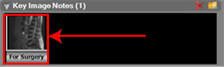
» To view a key note - (1) double click on the specific keynote from the keynote panel - shown below; or (2) click on the specific keynote and then click on the folder icon in the top right corner of the panel: