To properly display this page you need a browser with JavaScript support.
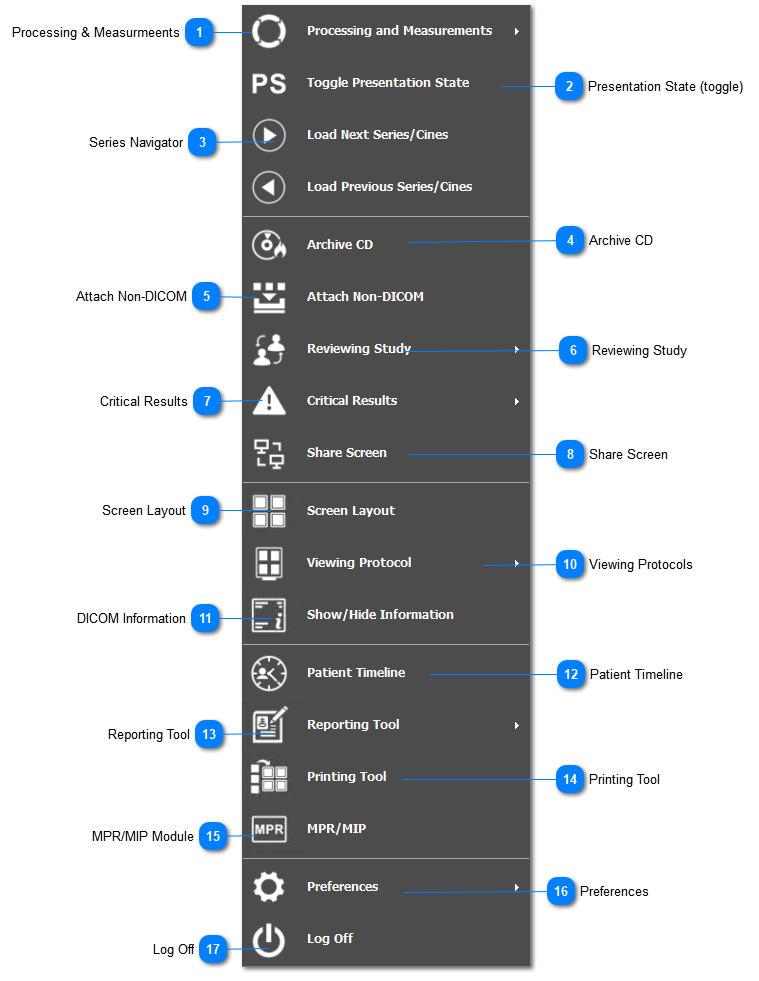
The main menu button gives you access to all of the functionality in the Ultima viewer and is located in the bottom left corner of the Ultima Viewer. Click on it to open open an expanded menu of options, as seen below:
Processing & Measurmeents Contains tools for selecting a region of the image; adding annotations to the image; measurement tools; image processing; and filter tools. Learn more
here .
Presentation State (toggle) Show and hide your presentation state. Learn more
here .
Series Navigator Load the next or previous set of series or cines for a study. Learn more
here .
Archive CD Archive the studies by burning CD/DVDs or export onto a directory. Learn more
here .
Attach Non-DICOM Import Non-DICOM files onto the study. Learn more
here .
Reviewing Study Create a preliminary report for ED discrepancy workflow. Learn more
here .
Critical Results Set a study as a critical result from the study viewer. Learn more
here .
Share Screen Screen share with other online users using GoToMeeting. Learn more
here .
Screen Layout Change the number of image windows on your screen. Learn more
here .
Viewing Protocols Switch between VP; and create / edit / add VPs for different users/ modalities. Learn more
here .
DICOM Information Show and hide the DICOM information on the outer corners of the image window. Learn more
here .
Patient Timeline This enables the user to view a timeline of all the patients studies. Learn more
here .
Reporting Tool
Write a basic or advanced report; a structural report for a cath / echo / EPS study; and feature to dictate report. Learn more
here .
Printing Tool
Create / edit /print films for the study. Learn more
here .
MPR/MIP Module
Multi-planar reconstruction for studies with a large number of images. Learn more
here .
Preferences
This contains settings for customization of user shortcuts, user presets; and interface customization. Learn more
here .
Log Off
Users can log off of PACS from the study viewer.