19.0.0. Study Viewer Settings
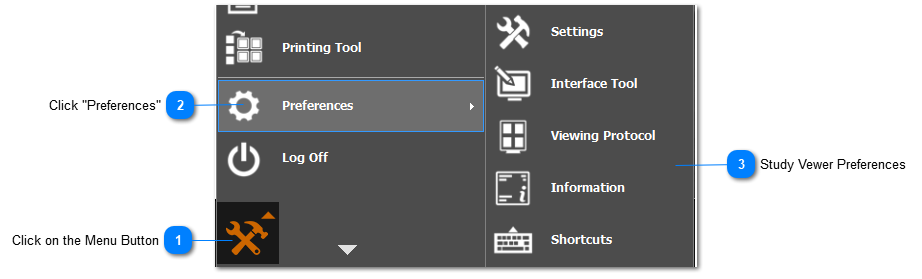
In this section the user will learn how to access and control the study viewer preferences, follow the steps below:
 Click on the Menu Button
|
|
 Click "Preferences"
|
|
 Study Vewer Preferences
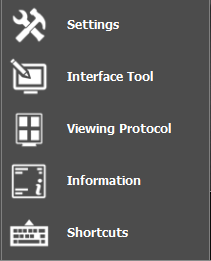
A brief description of each is given below. Each section will be explained in their respective sections below.
contains the image, filming, monitor, general, and 3D settings.
customize the tools that the user has quick access to via the toolbox panel located on the bottom of the study viewer.
Configure, edit, and apply viewing protocols
Customize the DICOM tags shown in the each corner of the images.
customize the Window Width (WW) and Window Level (WL) of different tissues in the image
View and edit assigned shortcuts / hotkeys for different functions and configure the default mouse options.
|
|