Ultima360
User guide
×
Menu
Index

19.5.0. User Presets

 
The user presets editor enables the user to customize the window width (WW) and window level (WL) of different tissues in the image. These values represent the brightness and contrast of the image. By default, the window/level tool only affects gray scale images. Adjusting the window width and level on a colored image will change the actual color of the image as opposed to the gray portions.


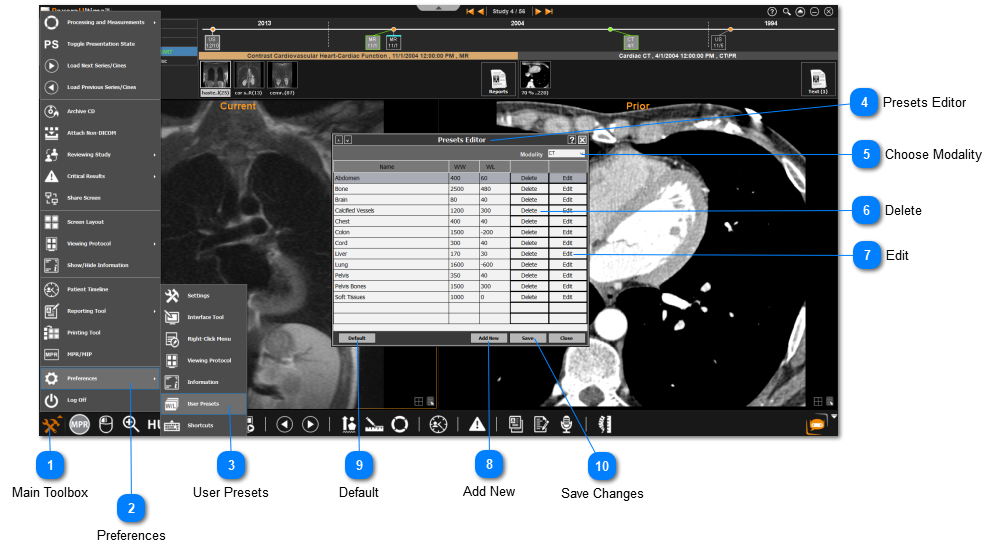
To access the user-preset settings, follow the instructions below:
19.5.0. User Presets
 
1

Main Toolbox

1. Main Toolbox
Click on the Main Toolbox on the bottom left corner.
2

Preferences

2. Preferences
Select Preferences from the drop-down menu.
3

User Presets

3. User Presets
Select User Presets from the Preferences menu.
4

Presets Editor

4. Presets Editor
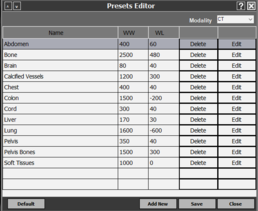
A list of all the existing presets is shown along with their WW and WL values.
5

Choose Modality

5. Choose Modality
Select the modality type to create WW/WL presets (choose between CT or MR).
6

Delete

6. Delete
Click 'Delete' to delete an existing preset.
7

Edit

7. Edit
Click 'Edit' to edit an existing preset.
8

Add New

8. Add New
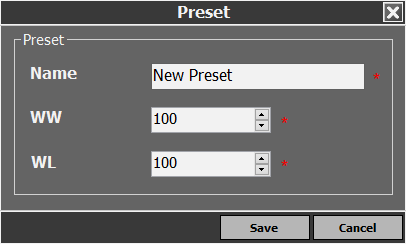
Click 'Add New' to create a new window preset. Name the new preset and manually enter the WW and WL values. Click 'Save' when you are done.
9

Default

9. Default
Return the preset to its default value by clicking on the ‘Default’ button in the bottom right corner of the window.
10

Save Changes

10. Save Changes
Click 'Save' to save preset changes when you are done.