Ultima User Guide (c) Copyright by PaxeraHealth Corp. 2021
19.4.1. Edit Info Window
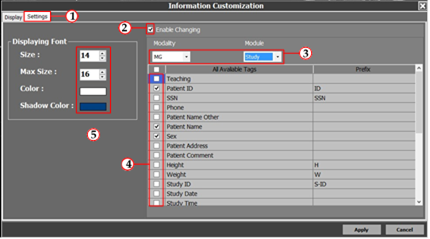
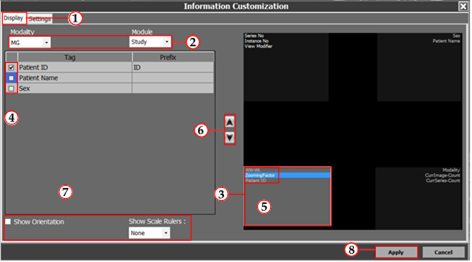
The following section will give instructions on how to edit the info windows using the settings and display tabs introduced earlier. The settings tab should be selected first, and then the edits are made in the display tab as explained below:
Settings tab
1. Click on the ‘Settings’ tab
2. Select the ‘Enable Changing’ tickbox to changes to be made to the info tags
3. Select the modality and module of interest for the info settings
4. Select all the tickboxes of the info tags to be accessible for adding to the image window
5. Edit the font size and color of the info tags.
Display tab
1. Click on the ‘Display’ tab
2. Select the modality and module of interest for the info settings
3. Select 1 of the 4 info windows. These represent the info tags for the top left, top right, bottom left, and bottom right corner of the image window.
4. Select the tickboxes of the information tags to be added to the info window selected in the previous step.
5. Click on the info tag of interest from the info window
6. Move the selected info tag up or down (this is to rearrange the order of the info tags)
7. Select ‘Show orientation’ and choose the type of scale ruler to be shown if application
8. Click on ‘Apply’ to apply these changes to the info windows.