Ultima User Guide (c) Copyright by PaxeraHealth Corp. 2021
19.4.0. Information
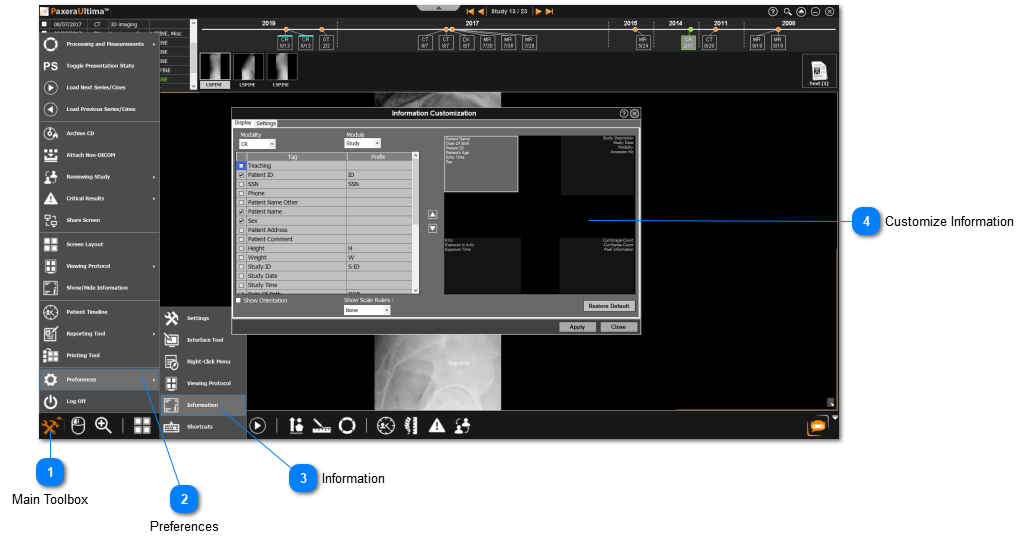
The information setting enables the user to customize the information shown in each image window of the screen layout. To access the information settings, follow the instructions below:
Main Toolbox
Click on the Main Toolbox on the bottom left corner.
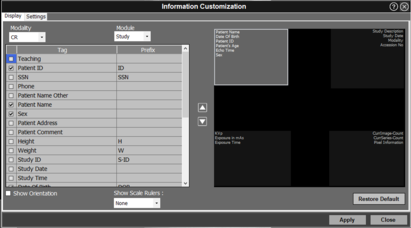
The Information Customization Menu consists of two tabs: Display and Settings. An overview of both tabs are given below:
Settings tab
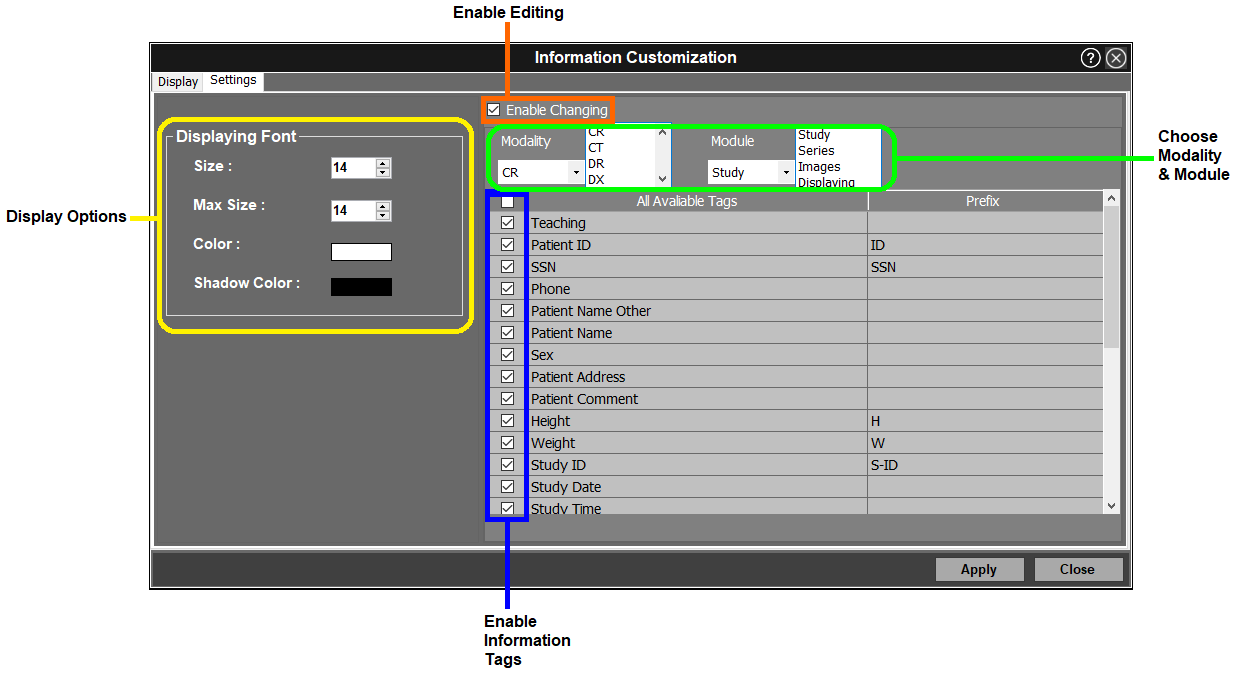
The settings tab enables the user to select the info tags (per modality & module) to be displayed in the image window along with the display options (size / color).
Enable editing − check off the box to enable the DICOM information tags to be edited on the outer corners.
Choose modality & module − select the modality and module (study / series / images / displaying).
Display options − modify the font size, color, and shadow.
Enable info tags −check off appropriate DICOM tags to be displayed on the outer corners according to each module.
Display tab
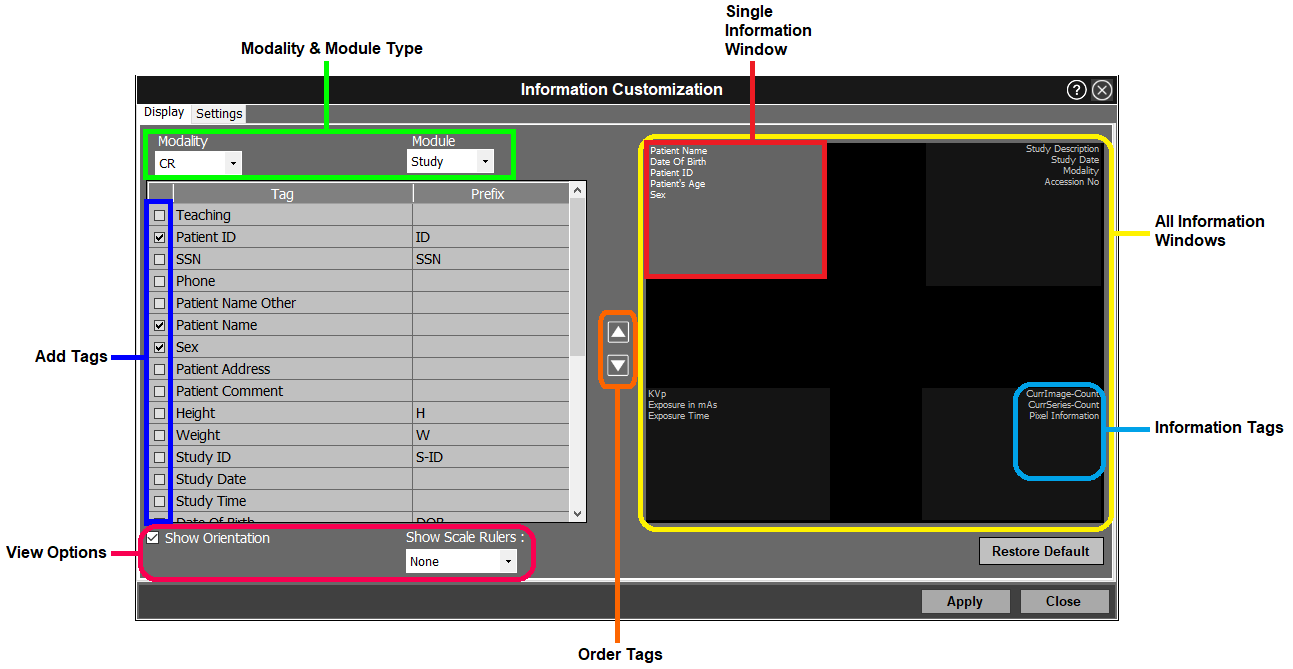
The display tab enables the user to customize all the info displayed on the outer four corners of the image windows for a specific modality and module. You can also rearrange the order of tags.
Modality & module type − select the modality and module (study / series / images / displaying) for which the information tags need to be edited.
Add tag − select a DICOM tag to be displayed on the image window by checking off the corresponding boxes.
Order tag − change the order (positioning) of the DICOM tags within each corner.
View options − show orientation and scale rulers
Single info window − select 1 of the 4 info windows (the active window will be highlighted) to be customized.
All info windows − contains all 4 info windows.
Information tags − show the info tags that will be displayed for each info window (corner).