Ultima User Guide (c) Copyright by PaxeraHealth Corp. 2021
19.2.0. Interface Tools
The interface tool enables the user to customize the toolbar panel on the bottom of the screen. The bottom panel can be customized per user for each modality and 2D / MPR mode.
To access the interface tool, follow the instructions below:
Main Toolbox
Click on the main toolbox located on the bottom left corner.


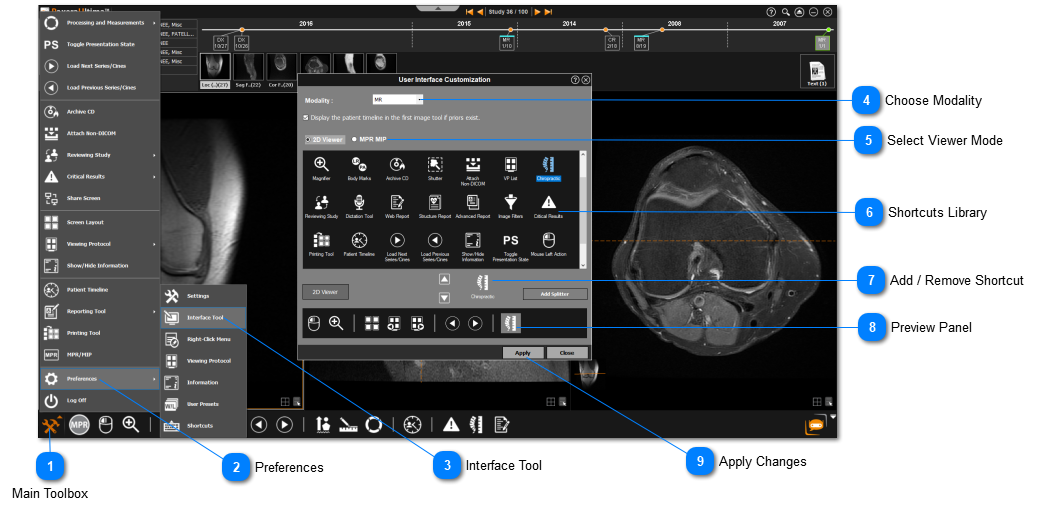












 to add the selected tool from the shortcuts library to the bottom toolbar panel.
 to remove the selected tool from the bottom toolbar panel to the shortcuts library.