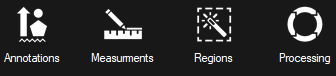
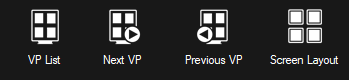
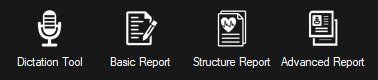
The toolbox panel contains shortcuts to tools and is located on the bottom of the screen in the study viewer:
The tools visibility differs depending on the interface preferences (see Section 9.2 ) and the modality of the study opened.
An overview of all the available tools is shown below. Many of them have been explained in other sections - in these cases, the section to refer to is listed. The tools that have not been explained in other sections will be explained further on in this section.
Image handling tools (learn more here)
Modality specific tools (learn more here)
Viewing protocol (VP) tools (learn more here)
Report tools (learn more here)
MPR/MIP viewer tools (learn more here)
Other Tools:
► Backwards: keep the current study opened and open previous study on patient's timeline.
► Forward: keep the current study opened and open the next study on the patient's timeline.
► Previous: open previous cine file.
► Next: open next cine file.
► Reviewing Study: this is used for ED discrepancy workflow and to create a preliminary report.
► Critical Results: this is used for critical results workflow and to mark a study as a critical finding.
► Mouse Left Action: this tool is used to dictate the action for the left-click on the mouse.
► Magnifier: this tool is used to look at a magnified region on the image.
► Patient Timeline: this tool is used to see the patient's full history of studies.
► Show/Hide Information: this tool is used to show and hide the outer DICOM information for each window.
► Toggle Presentation State: this tool is used to show and hide the presentation state(s) for the study.
► Body Marks: this tool is used to mark your image (for body orientation, projection, position, etc.).
► Shutter: this tool is used to create a shuttered region on your image.
► Image Filters: this tool is used to apply a filter to your image.
► Printing Tool: this tool is used to print your images onto paper or film.
► Save in Series on Image Click: this tool is used to save markups as a new series automatically when you left-click on the image.
 Customize toolbox panel: the toolbox panel is fully customizable per user and modality. To learn how to customize it, click here
.