To properly display this page you need a browser with JavaScript support.
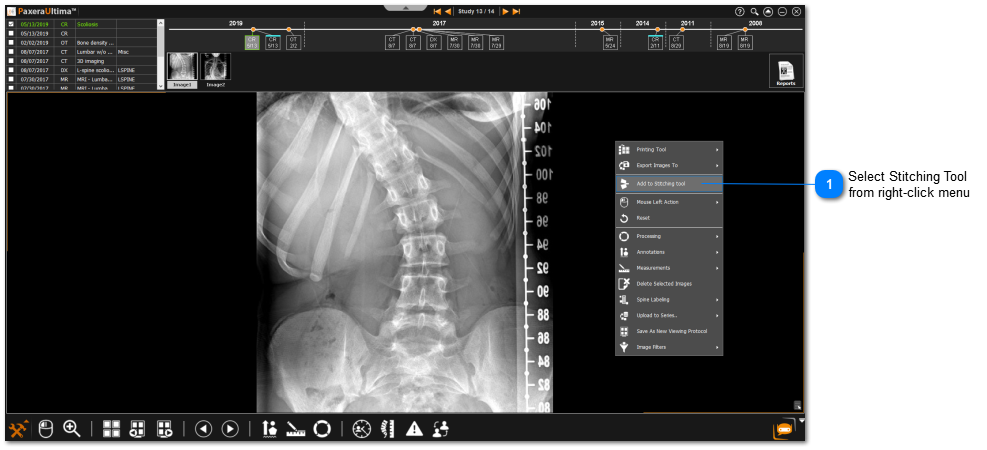
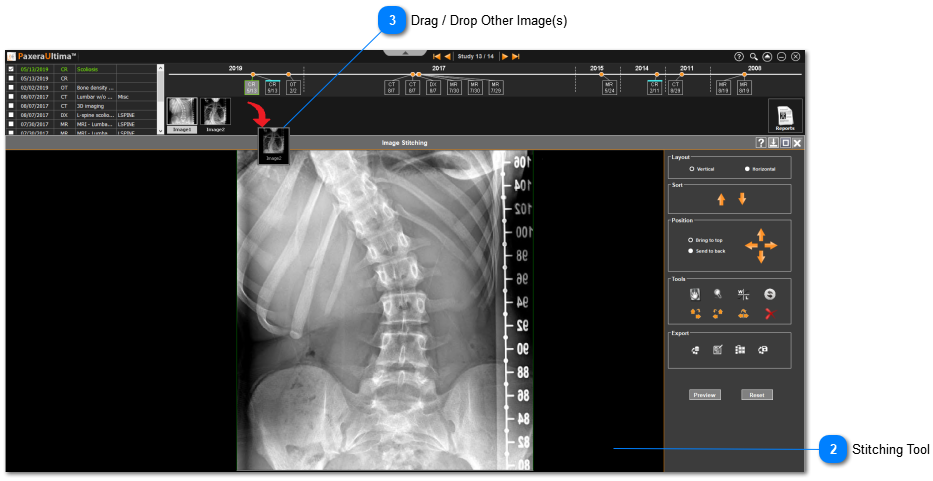
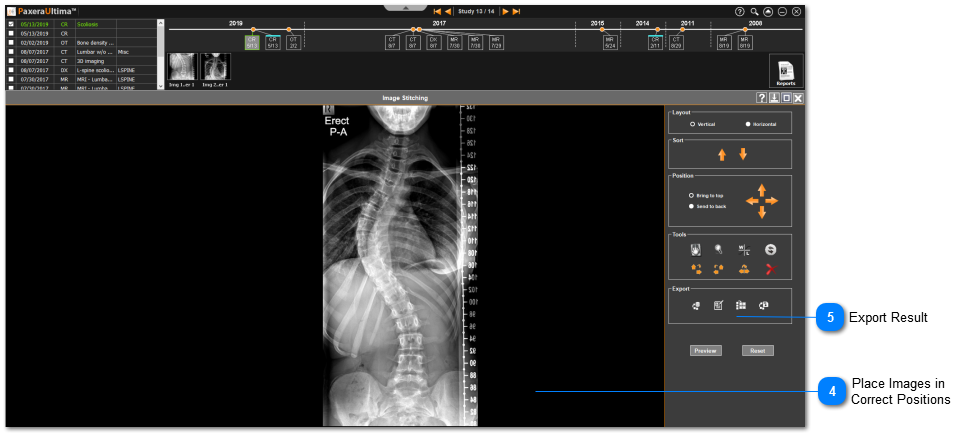
This tool is used to stitch multiple images together as a single image. Image stitching is commonly used for scoliosis studies.
To learn how to use this tool, see the instructions below:
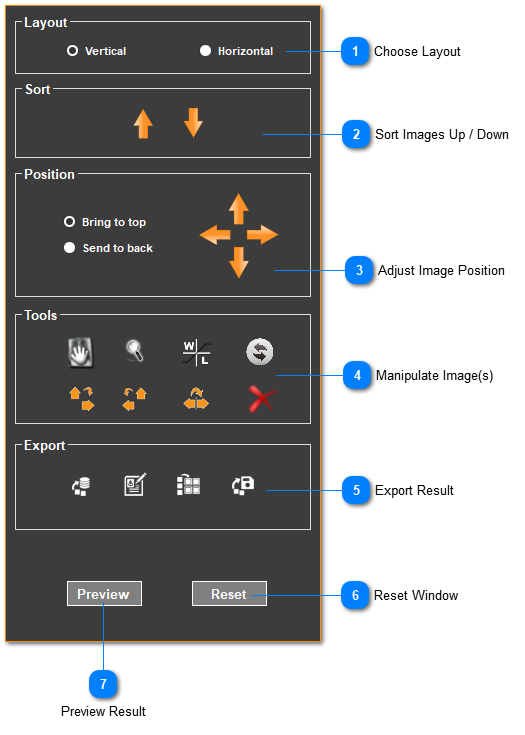
Tools on Image Stitching Menu:
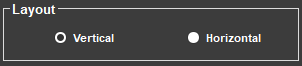
Choose Layout Choose the orientation of your images (vertical or horizontal).
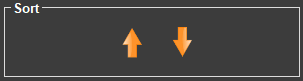
Sort Images Up / Down Click on the up / down arrows to sort your images to the top or bottom in the window.
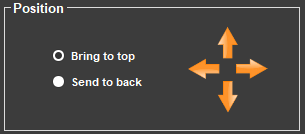
Adjust Image Position Select between: Bring to Top or Send to Back to move your images forward or backwards in the window.
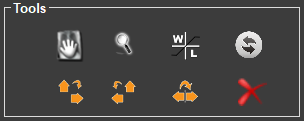
Manipulate Image(s) Use any the these tools to manipulate your image(s):
Pan the image using the left-click button on your mouse and dragging the image.
Zoom into the image using the left-click button on your mouse and moving the mouse up / down.
Change the
WW/WL of the image using the left-click button on your mouse and moving the mouse up / down and left / right.
Freely rotate the image by holding down the left-click button on your mouse and moving the mouse in a circular motion.
Rotate the image
90 degrees clockwise (+90 degrees).
Rotate the image
90 degrees counterclockwise (-90 degrees).
Flip the image across the horizontal (x) axis.
Remove the selected image from the stitching window.
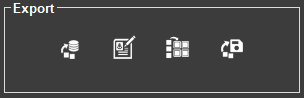
Export Result Export the result using any of these methods:
Upload the result as a new series.
Send the result to the reporting tool.
Send the result to the printing tool.
Save the result as a DICOM, Bitmap, JPEG, TIFF file.
Reset Window Click 'Reset' to reset the image stitching window.
Preview Result Click 'Preview' to preview the result in the image stitching window.






 Pan the image using the left-click button on your mouse and dragging the image.
 Zoom into the image using the left-click button on your mouse and moving the mouse up / down.
 Change the WW/WL of the image using the left-click button on your mouse and moving the mouse up / down and left / right.
 Freely rotate the image by holding down the left-click button on your mouse and moving the mouse in a circular motion.
 Rotate the image 90 degrees clockwise (+90 degrees).
 Rotate the image 90 degrees counterclockwise (-90 degrees).
 Flip the image across the horizontal (x) axis.
 Remove the selected image from the stitching window.
 Upload the result as a new series.
 Send the result to the reporting tool.
 Send the result to the printing tool.
 Save the result as a DICOM, Bitmap, JPEG, TIFF file.


