Ultima User Guide (c) Copyright by PaxeraHealth Corp. 2021
9.5.0. Chiropractic Measurements
The chiropractic measurement tool enables the user to conduct a number of general and advanced chiropractic measurements in order to assist chiropractors in diagnosis and decision-making.
To access the chiropractic tools you can follow any of the methods below:
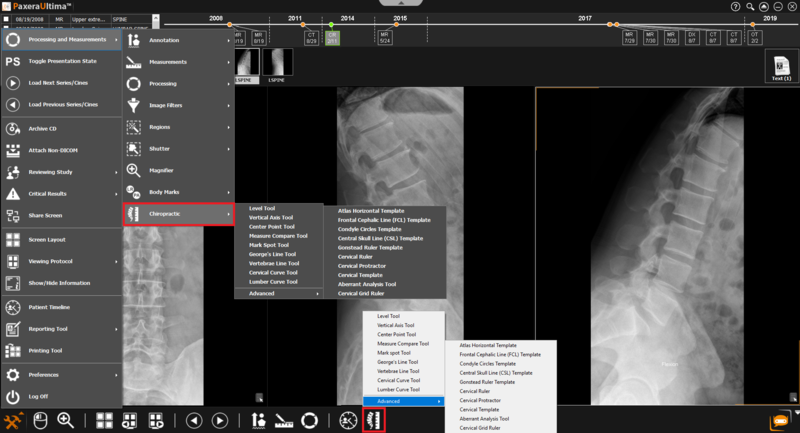
Go to the main toolbox on the bottom left corner > select Processing and Measurements > select Chiropractic.
Add chiropractic measurements as a shortcut on the bottom toolbar panel and select it.
The measurements are divided into two categories: General and Advanced.
The general tools are most commonly used by chiropractors while the advanced options contain specific templates for chiropractors.
An overview of all the chiropractic tools is given below in the two tables. Instructions on how to use each tool will be given in their respective sections as shown below:
Level tool
Determines the distance between a drawn line and the horizontal as well as the angle between the line and the horizontal level (see section 9.6.1).
Vertical Axis
Draw a vertical line at the selected point (see section 9.6.2).
Center Point Tool
Find the center point between two plotted points (see section 9.6.3).
Measure Compare
Measures the distance between the first point and the second point, and the second point and the third point, and then displays the longer distance (see section 9.6.4).
Mark spot
Mark as many points at necessary (see section 9.6.5).
George’s Line
Measure the spaces between vertebra (see section 9.6.6).
Vertebrae Line
Draw a line based on six points drawn (see section 9.6.7).
Cervical Curve
Draw a curve that is a part of a circle with 17-centimeter radius between two points (see section 9.6.8).
Lumber Curve
Draw an arch that is a part of a circle with 22-centimeter radius between two points (see section 9.6.9).
Advanced template tools
When drawing any template the program will ask if you want to resize the current image to the actual size or not
» Some of the templates are not re-sizable.
» Templates that are re-sizable can be resized using + and – keys.
» Templates that are rotatable can be rotated using < and > keys.
Atlas Horizontal
Find the horizontal cephalic line (see section 9.6.10).
Frontal Cephalic Line
(FCL)
Find the frontal cephalic line (see section 9.6.11).
Condyle circle
Perform condyle circle measurements (see section 9.6.12).
Finds the axial and condyle circles (see section 9.6.14).
Cervical ruler
Used to conduct measurements on the cervical spine (see section 9.6.15).
Cervical protractor
Measures the active cervical spine range of motion (see section 9.6.16)
Cervical template
Used to determine placement for a cervical pedicle screw (see section 9.6.17).
Aberrant analysis tool
Used to analyze a frontal imaging that appears aberrant (see section 9.6.18).
Cervical grid ruler
Used to conduct measurements on the cervical spine (see section 9.6.19).
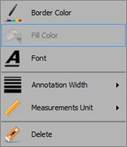
Edit measurement display
For any measurement conducted or template created, the user can right click on the measurement to access tools to edit the border color; fill color; font; annotation width; measurement unit; or to delete the measurement; as shown below: