Ultima User Guide (c) Copyright by PaxeraHealth Corp. 2021
9.9.0. Window Presets
The window presets allows the user to customize the Window Width (WW) and Window Level (WL) of different tissues on the image. The user can use standard templates of WW/WL that are available but can also add new presets. This tool is available for CT studies.
Apply window preset
To apply a standard template of WW/WW, follow the instructions below:
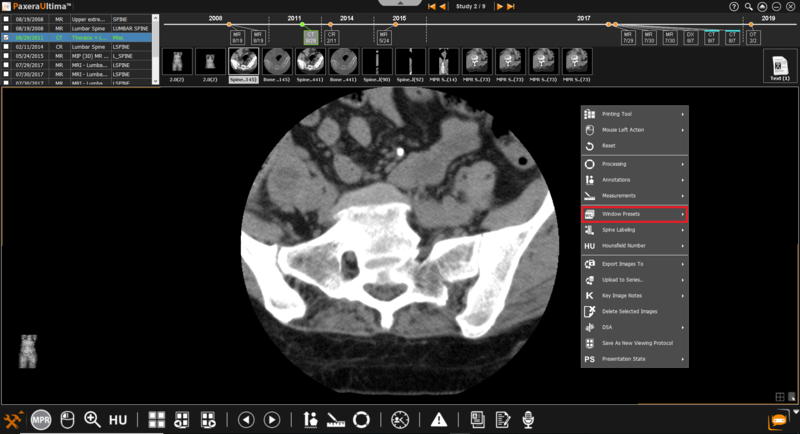
1. Right click on the image of interest from the study viewer.
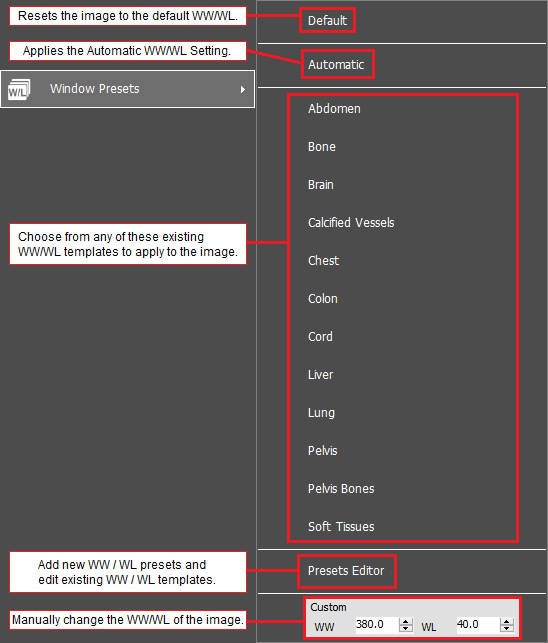
2. Click on ‘Window presets’and then either select a predefined preset from the list, or enter the WW/WL for a custom preset:
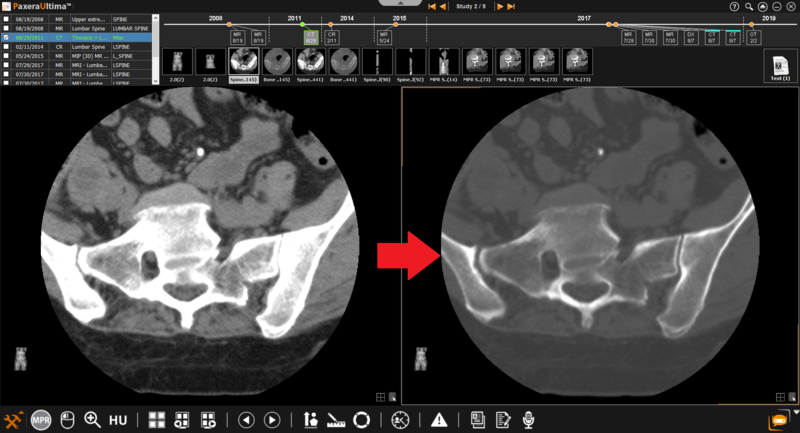
3. The WW/WL of the selected image window will change to the selected preset:
Presets Editor
To edit, delete, and add new window presets, follow the instructions below:
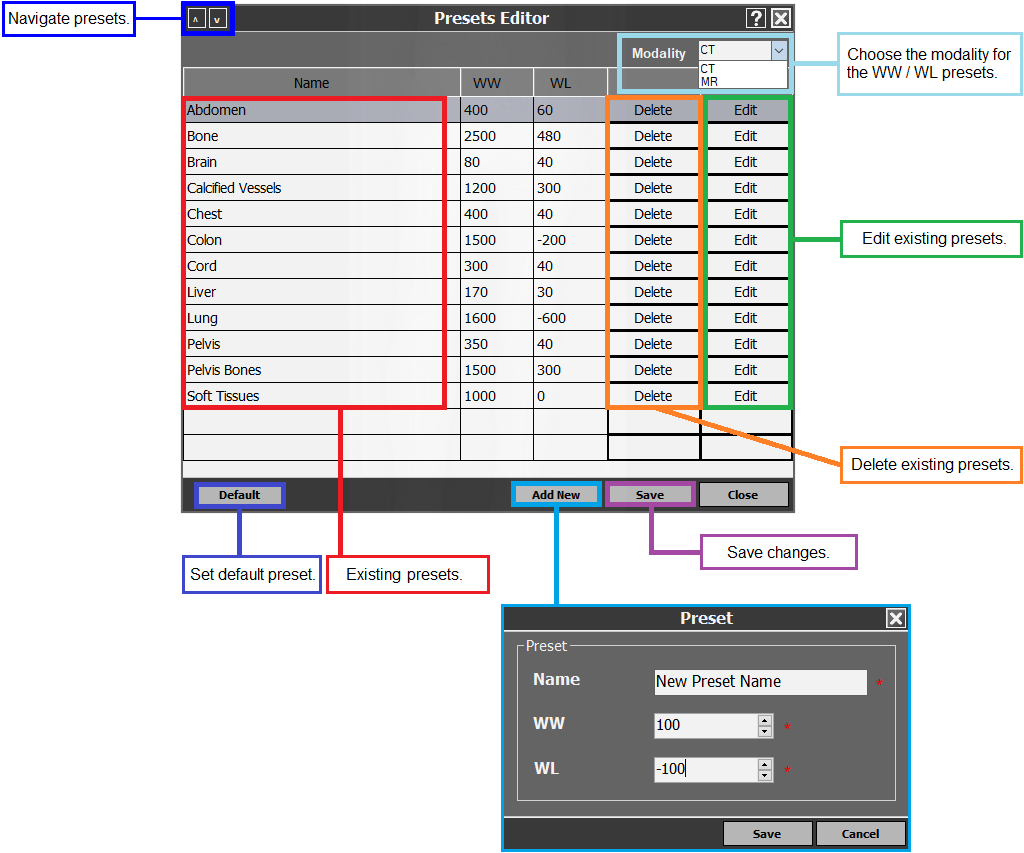
1. Right click on the image of interest from the study viewer > Windows Presets > Presets Editor.
2. The presets window editor will appear. The user can add, edit, and delete window presets.
3. Click on the ‘Save’ button when you are done applying changes.
Window preset editor
The window-preset editor can also be accessed from the study viewer settings. See User Presets to learn more.