Ultima User Guide (c) Copyright by PaxeraHealth Corp. 2021
9.3.6. Exporting Fusion Images / Series
There are a number of different ways to export the fusion image; instructions for all methods are given below:
Export to Printing Tool
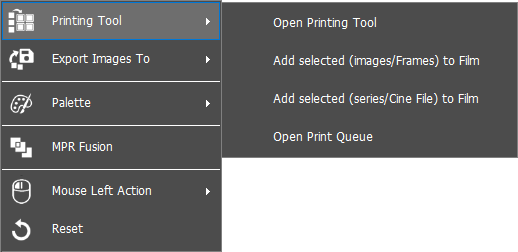
To export a series image to the printing tool, right-click on the image, a dropdown list will appear, click on 'Printing Tool' and then select the option of interest.
» Once the images are sent to the film; the color scale of these images cannot be changed.
» The default action of the mouse right-click is brightness and contrast when dragging over fusion image in the printing tool.
Export as an AVI file
To export the fusion series as a AVI file, follow the instructions below:
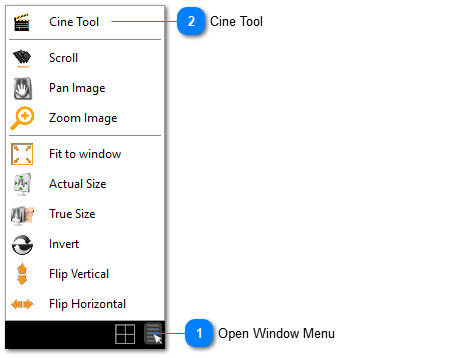
1. Click on the ‘Window tool’ buttonlocated in the bottom right corner of the image window, a dropdown list will appear, click on the ‘Cine’ tool.
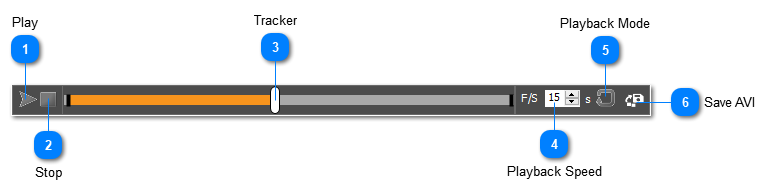
2. The cine tool will appear, click on the ‘Save as AVI’ button on the right hand side of the cine bar. The user can save either the whole fusion series or any selected part of it using start and stop trim control.
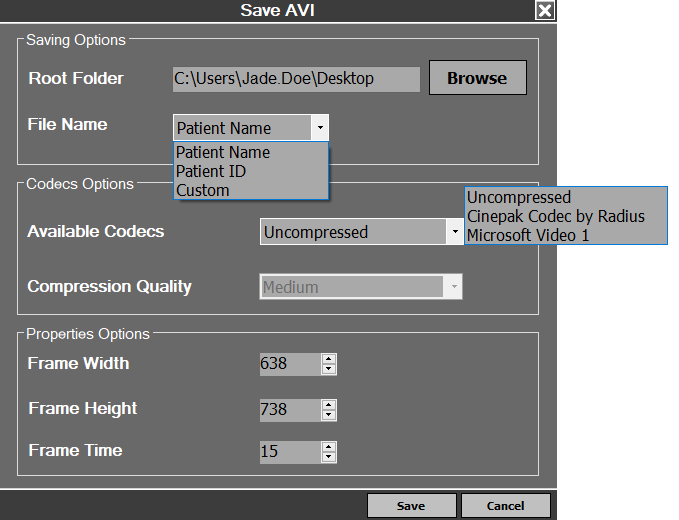
3. A new window will appear with the saving options, fill in the necessary fields and click on ‘Save’
Export to local directory / report
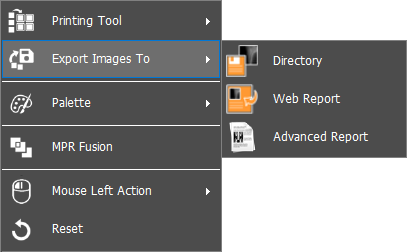
To export to a local directory / report, right click on the image window of interest, a dropdown list will appear. Click on ‘Export images to’ and then choose either ‘Directory’ / ‘Web Report’ / 'Advanced Report'.