5.1.4. Import from Remote Server
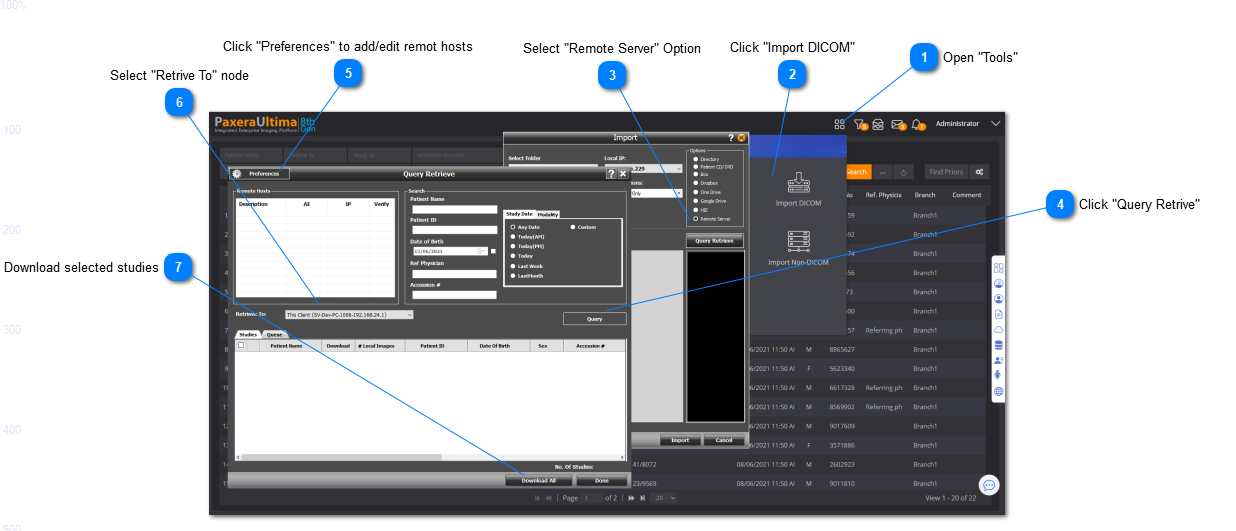
To import studies from a remote host using Query / Retrieve, simply follow the steps below:
Query Tab
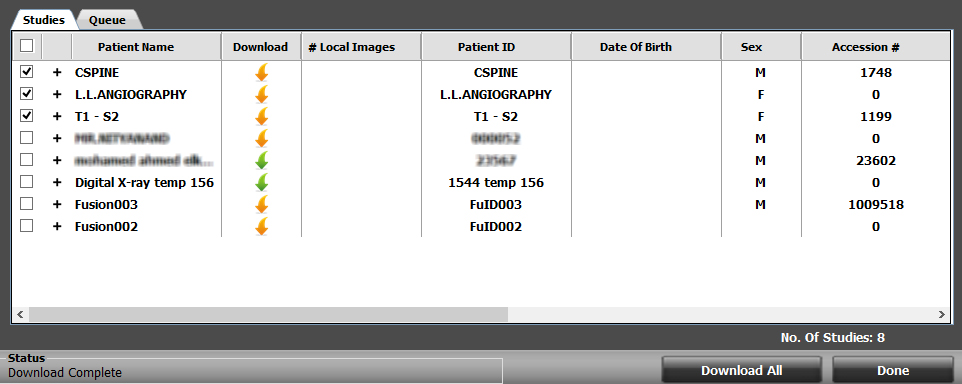
The query tab shows the search results from the remote host selected.
 Download one study
 Click on the arrow in the download column of the study to download only one study
Retrieve Tab
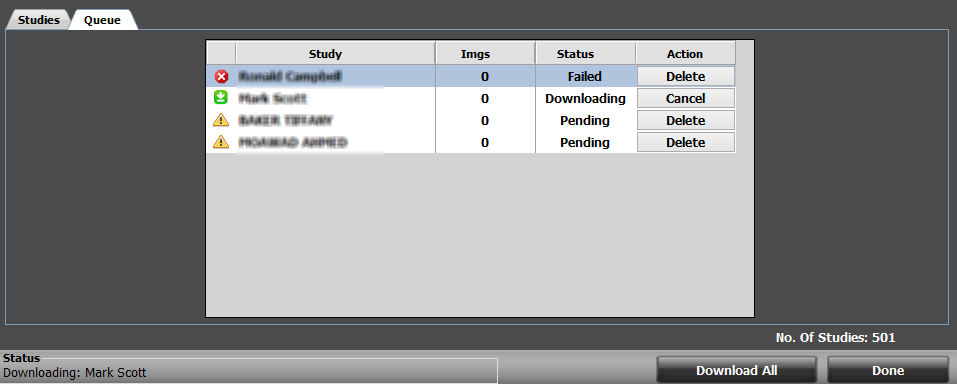
The Queue tab shows the progress of the retrieval process. When all the studies have been retrieved successfully, you can click the "Done" button.
The different statuses of the study:
• Failed - for the studies that failed to be retrieved.
• Downloading - for the currently downloading study.
• Pending - for the studies that are waiting for its role in the queue.
• Complete - for the finished downloading studies.
• Canceled - for the studies that were canceled by the user
The action for the study, allows the user to:
• Delete a failed/pending/completed study
• Cancel a downloading study
Preferences
When the user clicks on the "Preference" button from the main Q/R window, a new window will show with 2 tabs: Local Host & Remote Host.
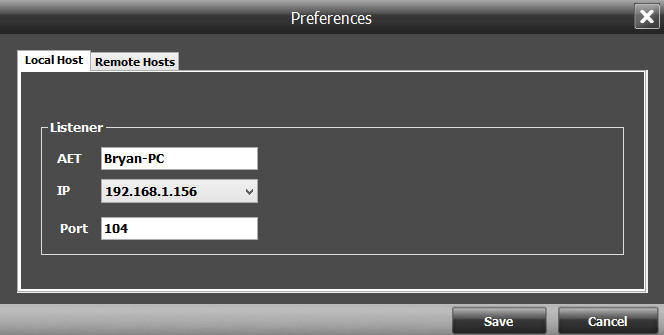
The local host parameters should already be set up on the workstation. The user can still view and edit the parameters if necessary, as shown below:
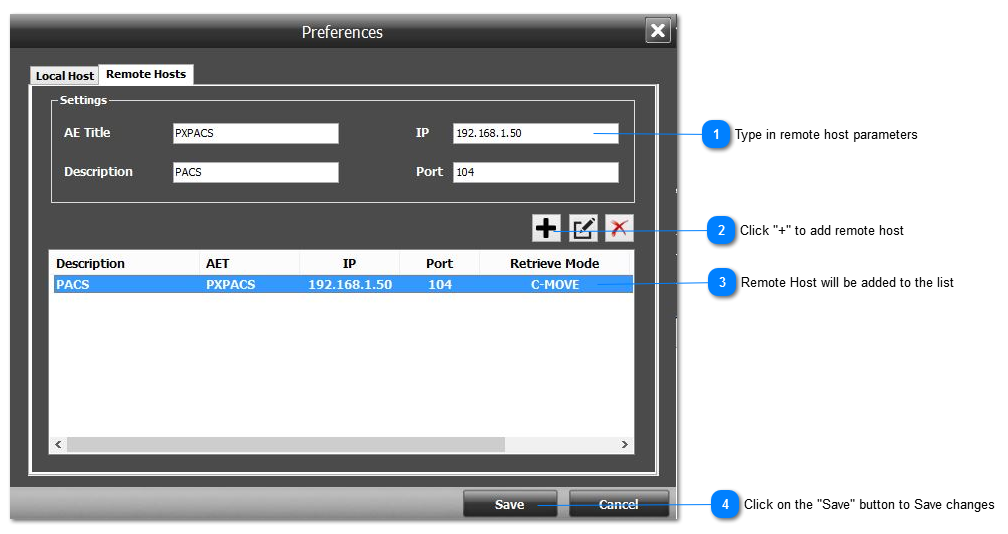
The remote host needs to be configured before conducting a query retrieve.
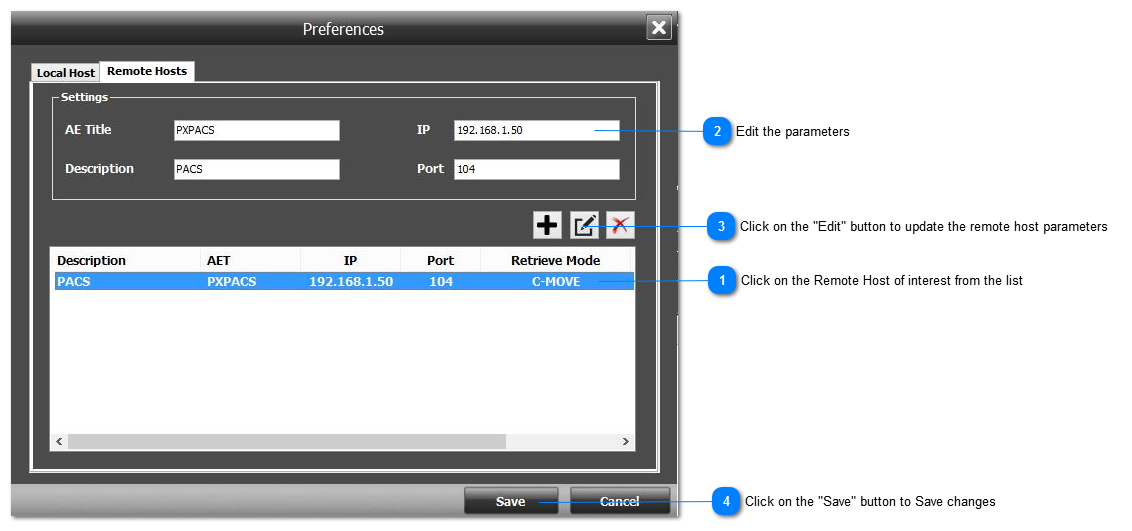
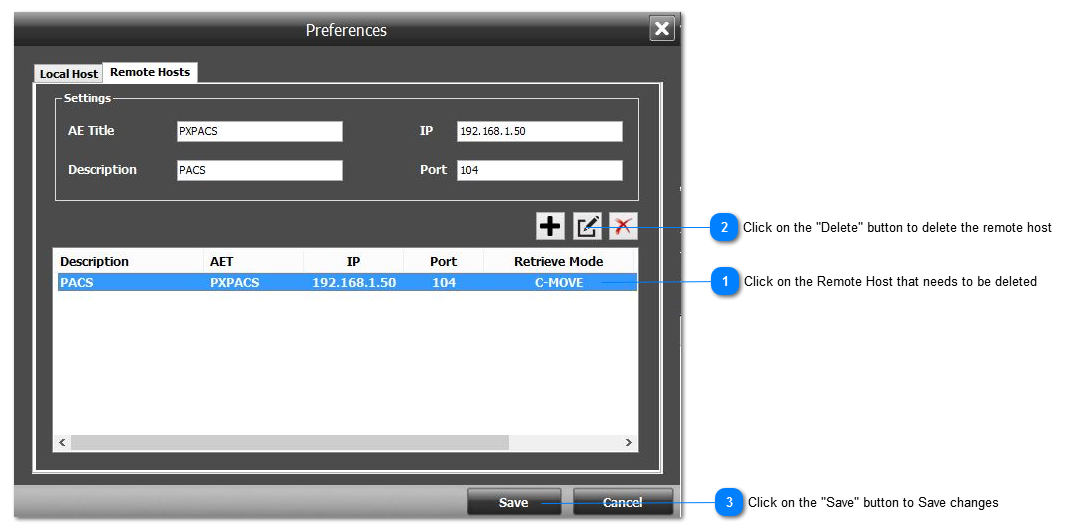
Multiple remote hosts can be configured, editted, and deleted:
Add Remote Host
Edit Remote Host
Delete Remote Host