Ultima User Guide (c) Copyright by PaxeraHealth Corp. 2021
4.8.0. Mark Study
This feature enables the user to mark the study as: stat/not stat; viewed/not viewed; and dictated/not dictated.
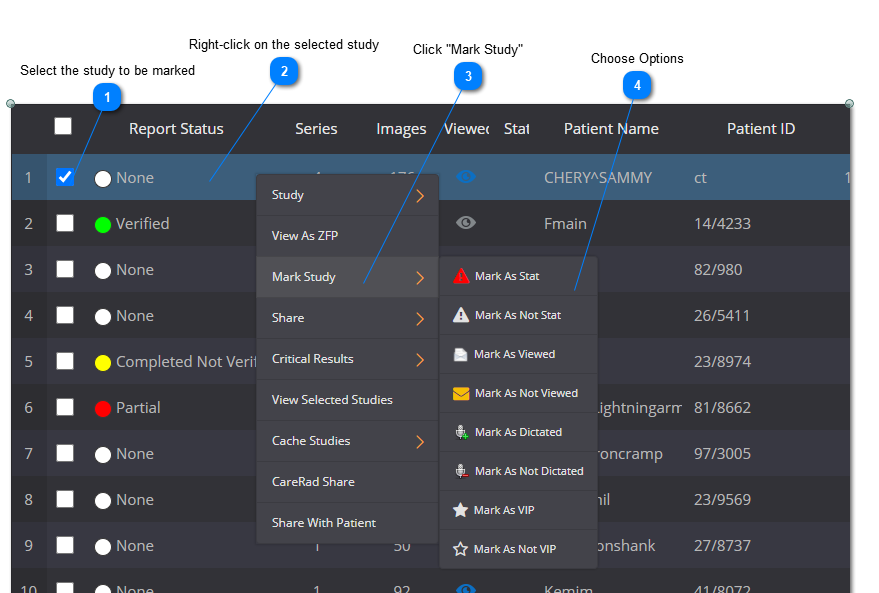
To do this, follow the steps below:
Mark as STAT / Not STAT:
Once a study is marked as STAT, the study row will change colors accordingly (click here for STAT color settings) and an icon will appear under the STAT column.
Mark as Viewed /Not Viewed:
Studies that have been viewed will be denoted with a icon under the viewed column; otherwise the study will be denoted with a icon indicating it has not been viewed.
Mark as Dictated / Not Dictated:
The study will be stamped with the appropriate username who dicated the study under the Dictator column.
Mark Study as VIP
Mark as The VIP feature is used to mark a study as 'VIP' and provide an additional layer of security for specific studies. This is similar to the "Break Glass Procedure" used in healthcare facilities to document all access to certain studies, commonly used for patients who are public figures or any patient who chooses to keep their identity anonymous. The user will learn how to set a study as VIP study.
VIP studies will be denoted with a icon under the VIP column.
Search for marked studies
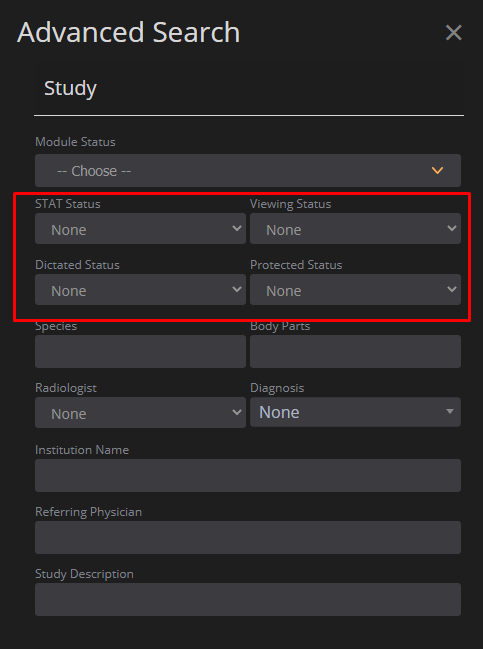
To search for marked studies, in the search toolbox: click on the ‘Advanced’ search button and then select the markings of interest to be included in the study:



 will appear under the STAT column.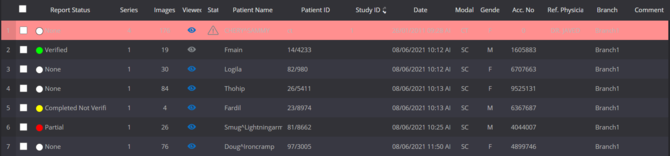
 icon under the viewed column; otherwise the study will be denoted with a
  icon indicating it has not been viewed.

 icon under the VIP column.