Auto Refresh the Page
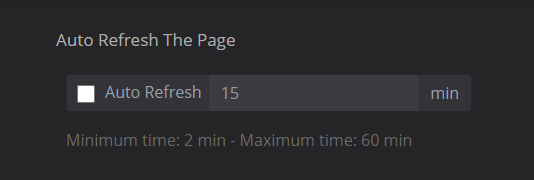
The user can set a time period to when the worklist will refresh automatically.
-
Check the box to enable the auto-refresh feature.
-
Manually enter the time (in min) to set the auto-refresh period.
-
To disable auto-refresh, uncheck the box.
Auto Log-off
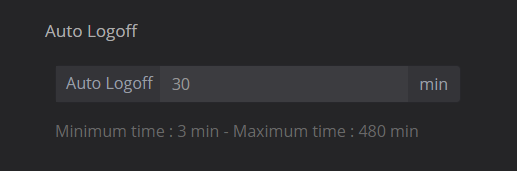
The user can set a time period to be logged out of the system automatically.
-
Manually enter the time (in min) to set the auto-log-off period.
Number of Studies Per Page
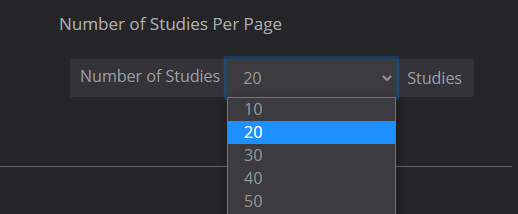
The user can set the maximum number of studies to be displayed per page.
-
Use the drop-down menu to select the maximum number of studies to be displayed per page.
Viewer Settings
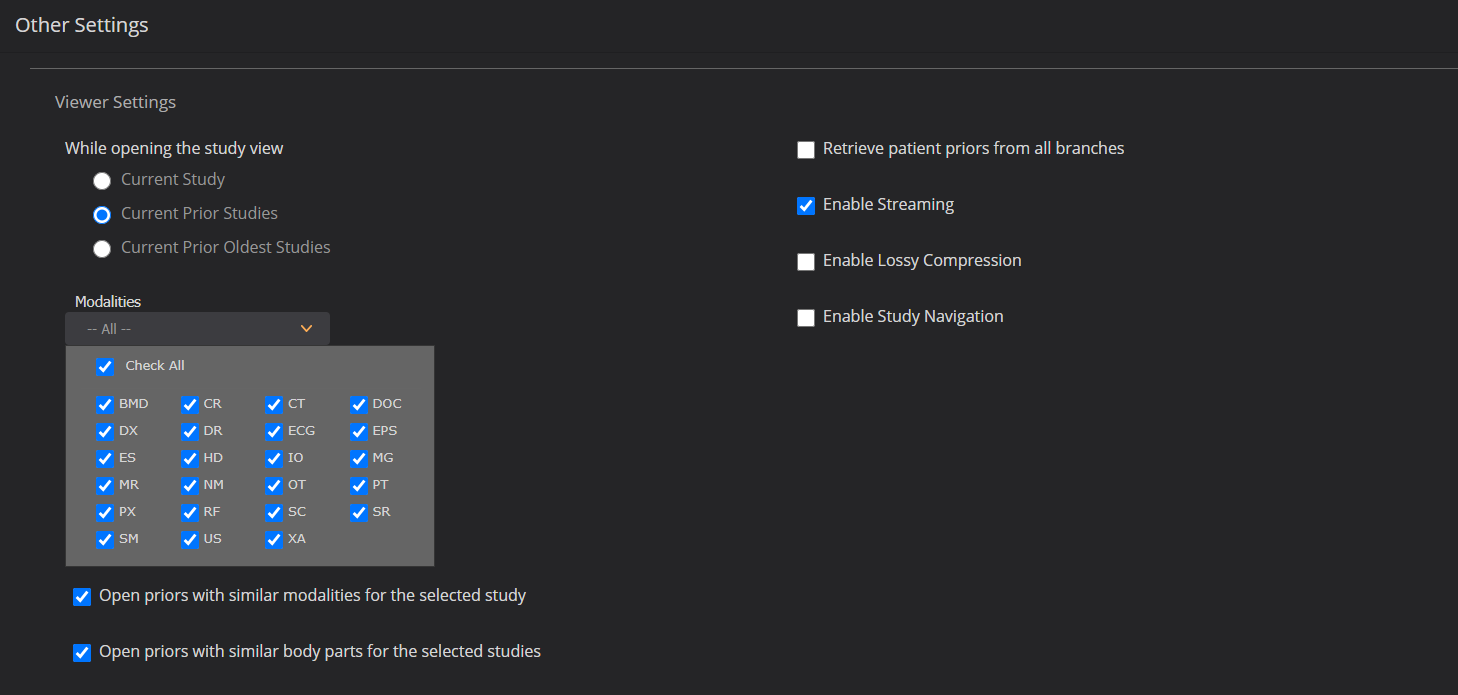
The viewer settings can be configured so that relevant prior studies will open automatically when the user opens a study from the worklist.
The user can also customize miscellaneous viewer features including: retrieving priors, streaming, study compression and navigation.
-
Under 'On Double Click View':
-
Select to see the current study, current prior studies, or current prior oldest studies when you open the study from the worklist.
-
Choose the modalities from the drop-down menu (multiple modalities can be selected by checking them off) to apply the settings.
-
Optional: the user can allow only relevant priors of the same modality to be opened automatically.
-
The user can enable any of the features below:
-
Retrieve patient priors from all branches
-
-
-
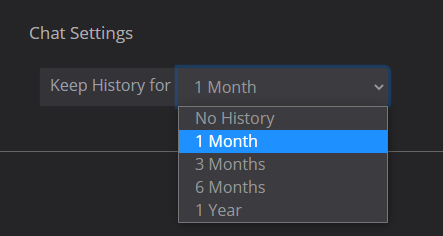
Chat Settings
The user can keep the chat history based on the time period that is set. The chat history will be cleared after the set time period.
-
User the drop-down menu to select the time period for keeping chat history.
Row Colors
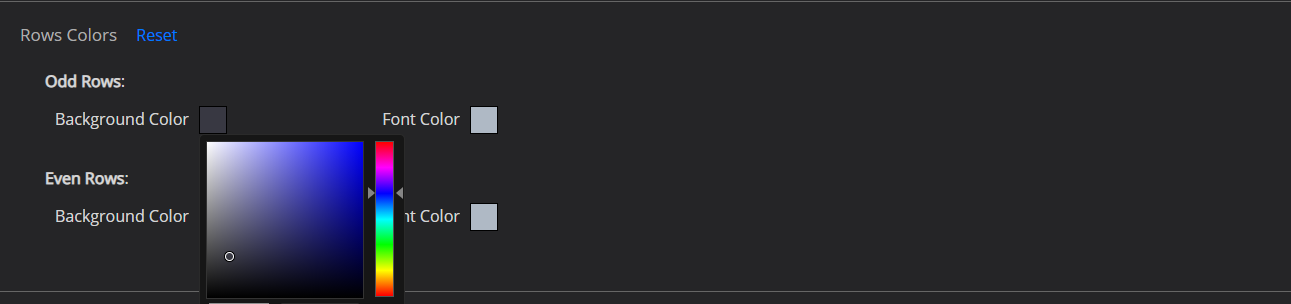
The user can customize the worklist colors by selecting the color per alternating rows.
-
Click inside the 'Background Color' box for the odd rows and select a color using the color spectrum menu.
-
Click inside the 'Font Color' box for the odd rows and select a color using the color spectrum menu.
-
Click inside the 'Background Color' box for the even rows and select a color using the color spectrum menu.
-
Click inside the 'Font Color' box for the even rows and select a color using the color spectrum menu.
-
To reset all colors, click on Reset.
Report Settings
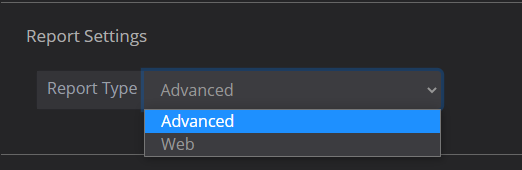
The user can choose which reporting tool type (Web or Advanced) to open when opening a report from the worklist.
-
Use the drop-down menu to select either 'Web' or 'Advanced' reporting tool.
STAT Color
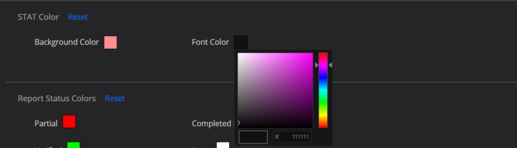
The user can color-code STAT studies that appear on the worklist.
-
Click inside the 'Background Color' box for STAT studies and select a color using the color spectrum menu.
-
Click inside the 'Font Color' box for STAT studies and select a color using the color spectrum menu.
-
To reset all colors, click on Reset.
 Save Changes: make sure to click on 'Save' to save your worklist settings.