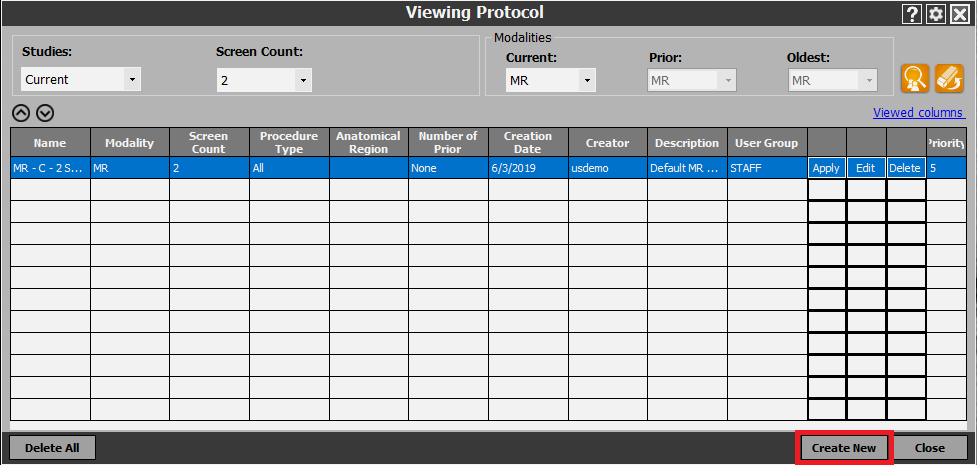
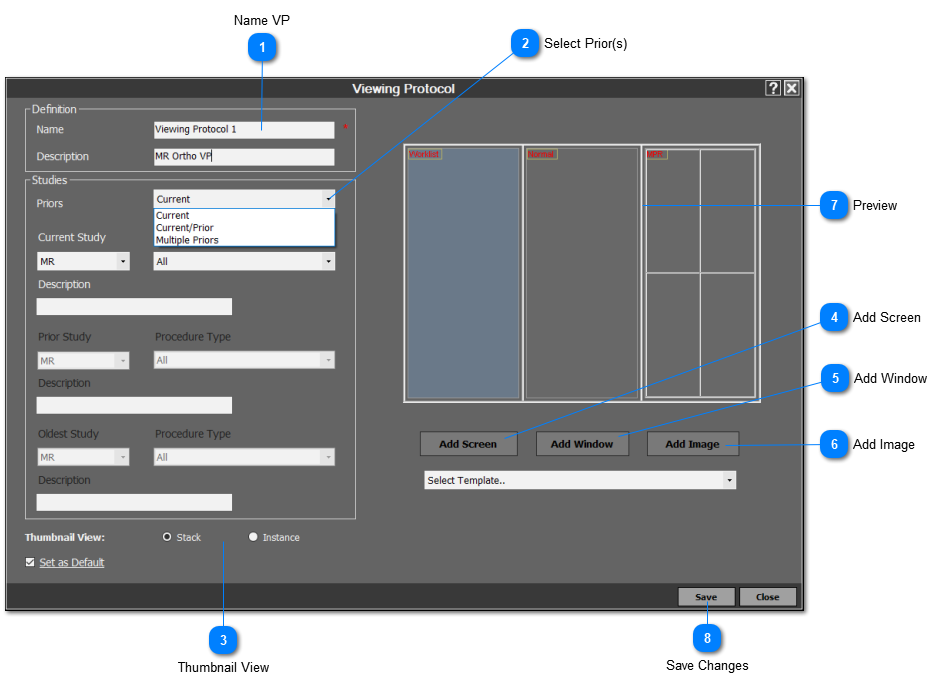
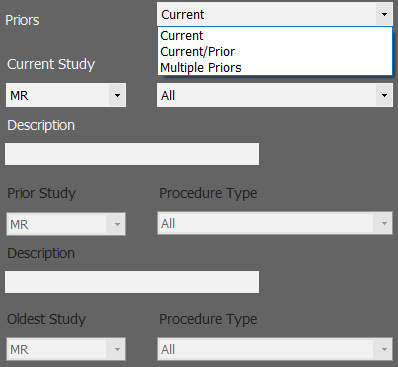
Use the drop-down menu to select the type of VP to make according to prior studies (only current, current and most recent prior, or current with multiple priors).
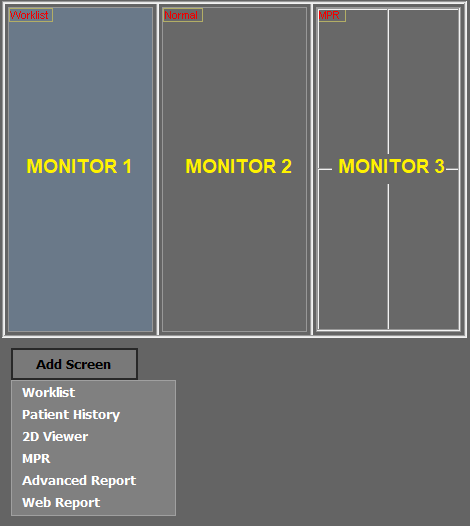
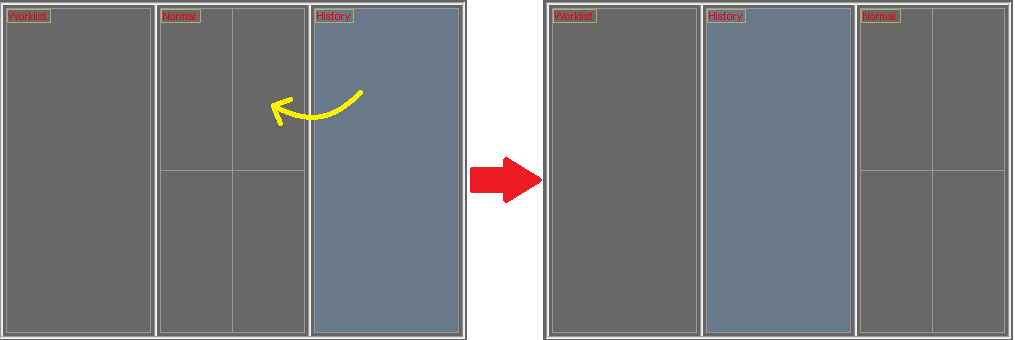
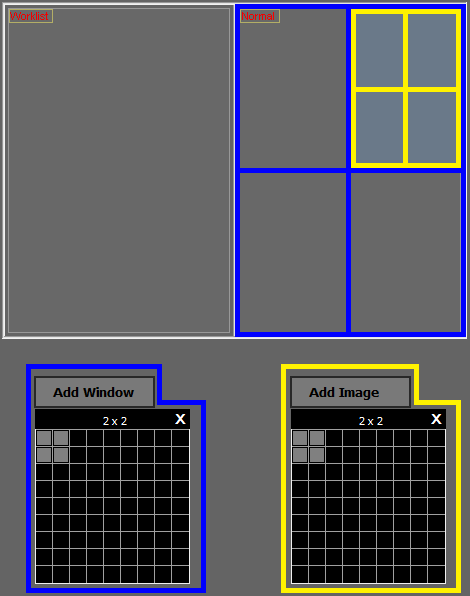
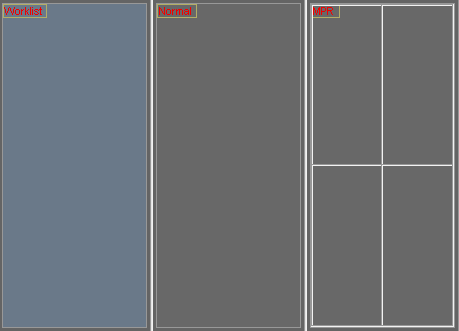
Use the drop-down menu to select and assign the different screens showing the worklist, patient history, 2D viewer, MPR viewer, advanced reporting tool, or web reporting tool to the monitors. Drag the screens with your mouse to change the order and positions of the monitor setup.
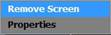
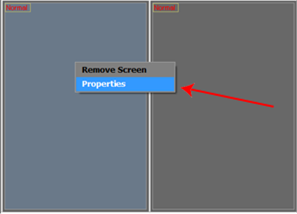
To delete a screen, right click on the screen and click on ‘Remove screen’:
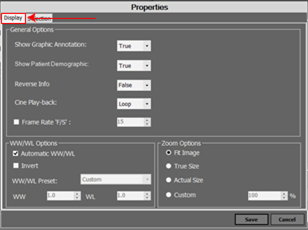
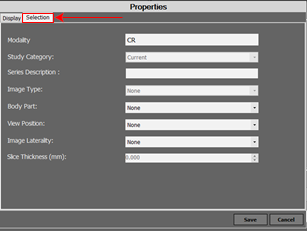
To access the advanced settings for the 2D viewer, right-click on the screen labeled 'Normal' and click on 'Properties. The Properties menu has two tabs (Display and Selection) where the user can customize the VP further according to body part, beam projection, image laterality, WW/WL settings, zoom settings, etc. These settings are modality specific and therefore differ according to the modality of the VP being created. The user can make any changes to these settings and then click on ‘Save’ located in the bottom right corner of the window in order to save the changes.
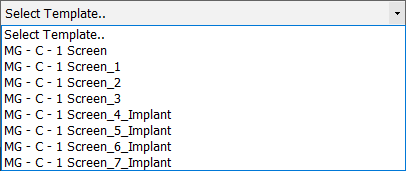
Select Template: Use the drop-down menu to load any predefined templates that are modality specific. The user can select one of the predefined templates to view it, or use it to create a new VP.