5.1.2. Import from Cloud Drive
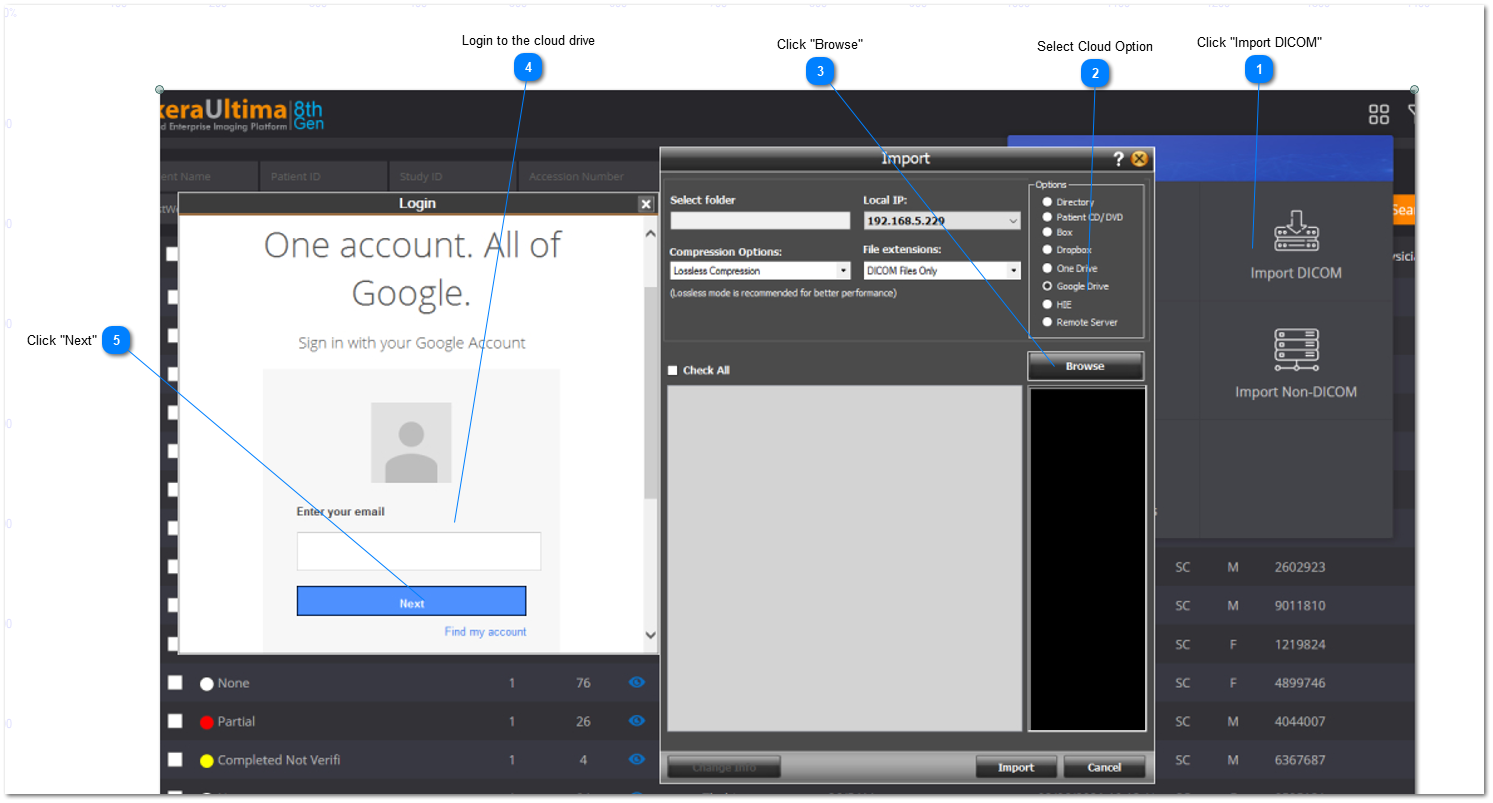
To import studies from a cloud directory(including: Box, Dropbox, One Drive, and Google Drive), simply follow the steps below:
6. Cloud Drive Study Finder
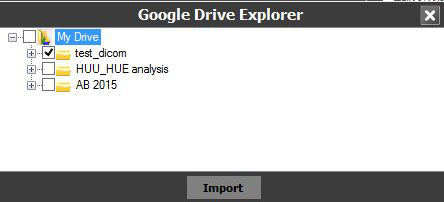
Select the DICOM file/s of interest from the Cloud drive explorer:
7. Study Content Preview
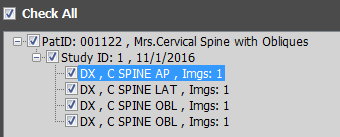
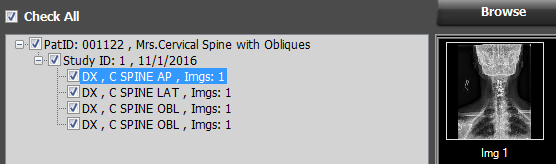
A list of the selected DICOM files will now be shown in the import window:

Choose which studies / series are to be imported using the checkbox (or "Check all - see below #4)

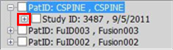
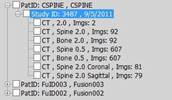
Click on the ‘+’ / '-' buttons (next to the file description) to expand the view from patient -> study -> series, as shown below:
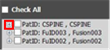
Patient Level Study Level Series Level
Study level - this level is used to edit any of the patient / study information before importing (see #6 below)
Series level - this level is used to preview the image before importing (see #5 below)
8. Change Info
Expand the Study Content Preview with the '+' button and click on the Study Level:
Then click on the "Change Info" button
9. Study Preview
To preview the study before importing - expand the Study Content Preview (see #4) and double click on one of the Series Level series:
10. Start Import
Click on the "Import" button to start the import. A new window will appear that shows the status of the import and contains columns indicating the study name, server name, status, progress, number of times the study has failed to import, and
a button with the action to take: