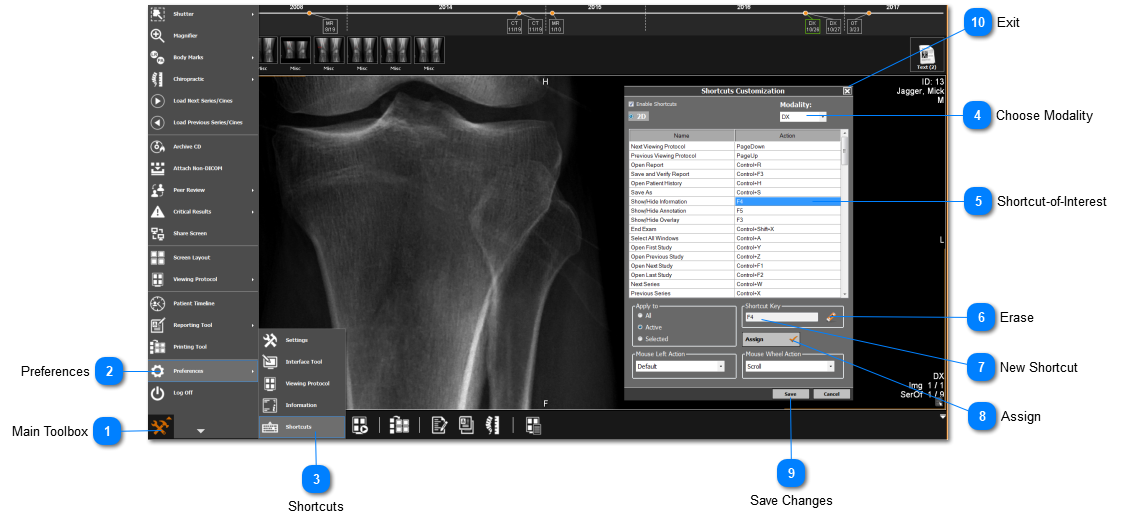
The keyboard shortcuts enable you assign your own keyboard shortcuts / hotkeys to launch specific study viewer functions and tools.
 Main Toolbox Click on the Main Toolbox on the bottom left corner.
|
|
 Preferences Select 'Preferences' from the drop-down menu.
|
|
 Shortcuts Select 'Shortcuts' from the Preferences menu.
|
|
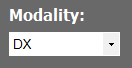
 Choose Modality Each modality has its own shortcuts, therefore - ensure you have the modality of interest selected.
|
|
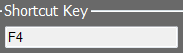
 Shortcut-of-Interest Click on the shortcut to be changed from the list, ensure that you click on the assigned shortcut key (i.e. F4 shown below) and not the shortcut name
|
|
 Erase Click on the 'Erase' button to remove the current shortcut.
|
|
 New Shortcut Select the textbox and type in the new shortcut. Use the keyboard to type in the new required shortcut to be used
|
|
 Assign Click 'Assign' to confirm the change.
|
|
 Save Changes Click 'Save' once you have finished changing the required shortcuts.
|
|
 Exit Click 'X' to close the window once you have finished making all the required changes.
|
|