Ultima360
User guide
×
Menu
Index
19.6.1. Keyboard Shortcuts
 
The keyboard shortcuts (or hotkeys) enable you to assign your own keyboard shortcuts to launch specific study viewer functions and tools. 
 
19.6.1. Keyboard Shortcuts
  
1
Main Toolbox
1. Main Toolbox
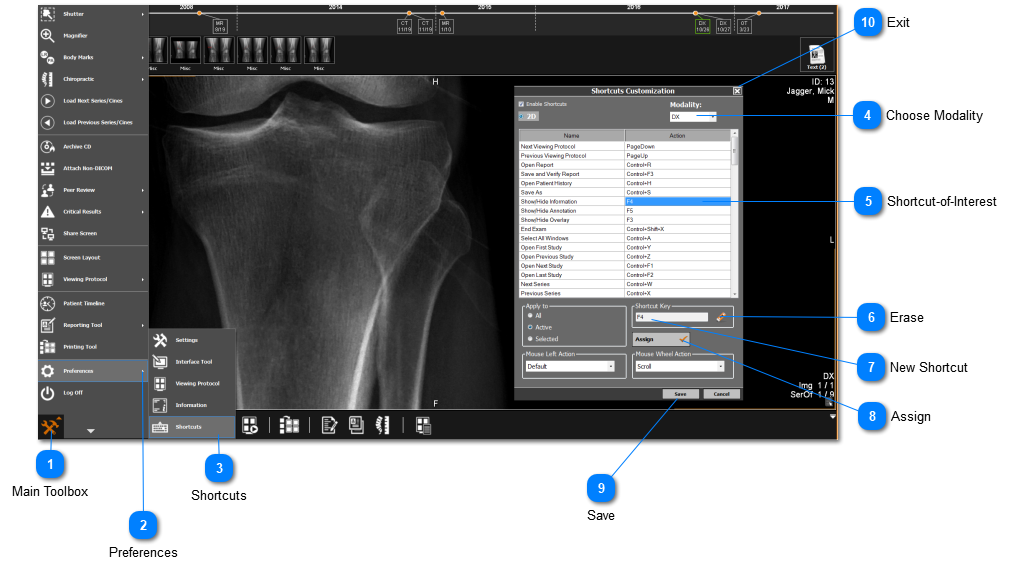
Click on the 'Main Toolbox' on the bottom left corner.
2
Preferences
2. Preferences
Select 'Preferences' from the drop-down menu.
3
Shortcuts
3. Shortcuts
Select 'Shortcuts' from the Preferences menu.
4
Choose Modality
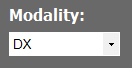
Each modality has its own shortcuts,  therefore - ensure you have the modality of interest selected.
4. Choose Modality
 
5
Shortcut-of-Interest
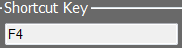
Click on the shortcut to be changed from the list; ensure that you click on the assigned shortcut key (i.e. F4 shown below) and not the shortcut name
5. Shortcut-of-Interest
 
6
Erase
6. Erase
Click the 'Erase' button to remove the current shortcut.
7
New Shortcut
7. New Shortcut
Select the textbox and type in the new shortcut. Use the keyboard to type in the new required shortcut to be used
 
  Shortcut already assigned
If you are trying to change a shortcut of an action that is already assigned to another function - it will give you an error that says the shortcut is in use. You will need to find the action that is using the shortcut and assign it a new hotkey and then you will be able to use it for your assigned function.
 
8
Assign
8. Assign
Click 'Assign' to confirm the change.
9
Save
9. Save
Click 'Save' after changing the required shortcuts.
10
Exit
10. Exit
Click on the 'X' button once you have finished making all the required changes.