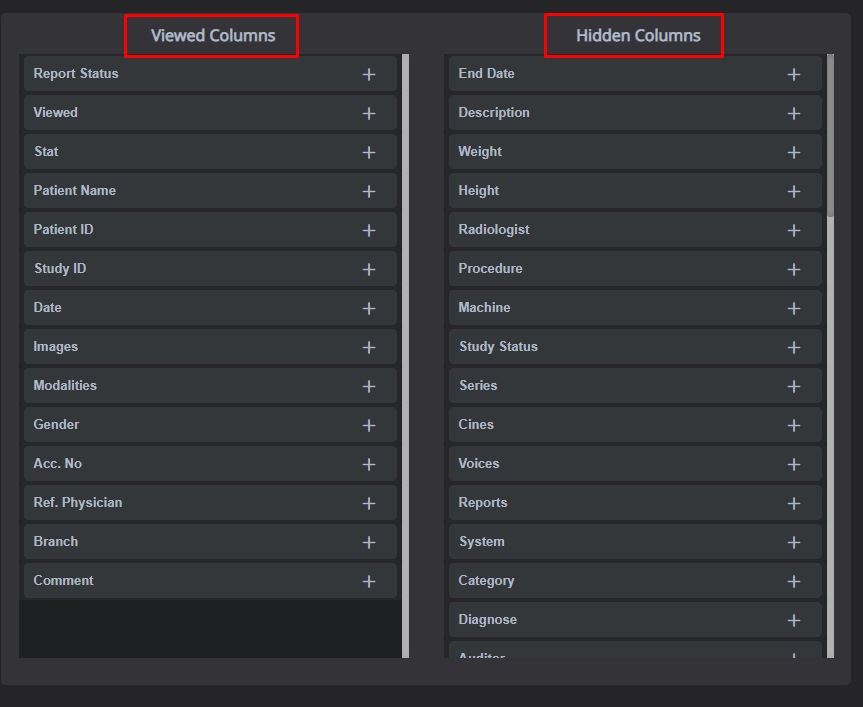
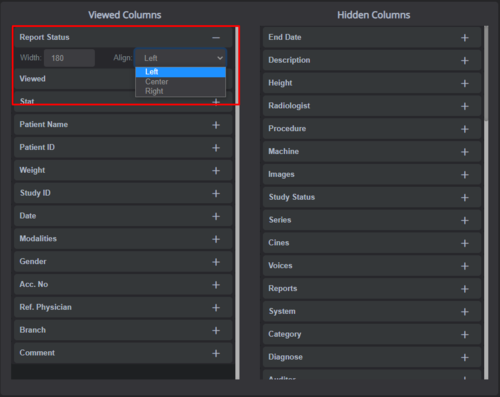
The column settings enable the user to view the visible and hidden columns of the worklist.
The user can also change which columns are viewed and hidden as well as the width and alignment of each column.
Column visibility
This setting enables the user to determine which columns in the worklist should be displayed.
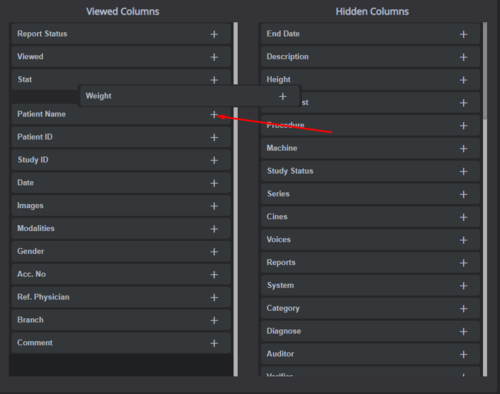
To make a column visible – drag and drop the column from the hidden columns panel to the visible columns panel as shown below:
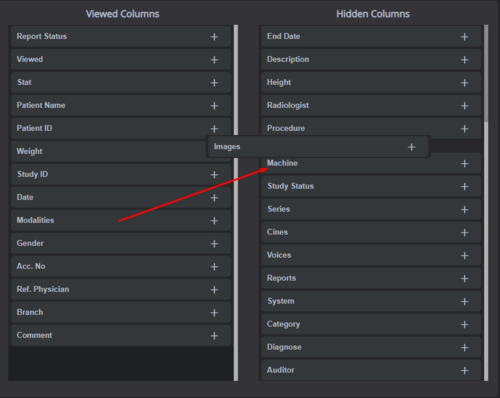
To make a column hidden – drag and drop the column from the visible columns panel to the hid- den columns panel as shown below:
Column order
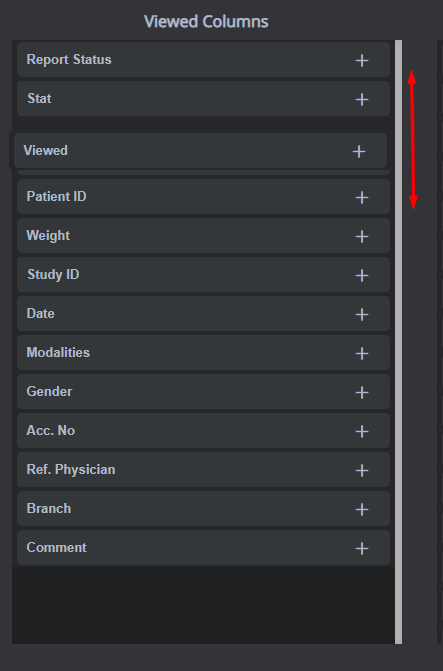
To change the order of the columns in view – drag and drop the column up or down in the viewed columns panel, as shown below:
Column width & alignment
To define the width in pixels and text alignment of any column, follow the instructions below:
1. Click on the '+' button next to the column name to expand the options.
2. Manually enter the desired width and use the drop-down menu to select the text alignment.
 Save Changes: make sure to click on 'Save' to save your worklist settings.