Ultima User Guide (c) Copyright by PaxeraHealth Corp. 2021
17.2.2. Annotations
Annotations are used to create markings or to add text to an area in the image
1. Click on the annotations icon from the toolbox panel, in the bottom left corner of the screen:
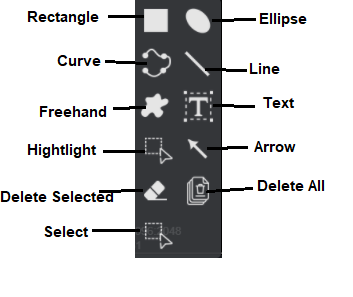
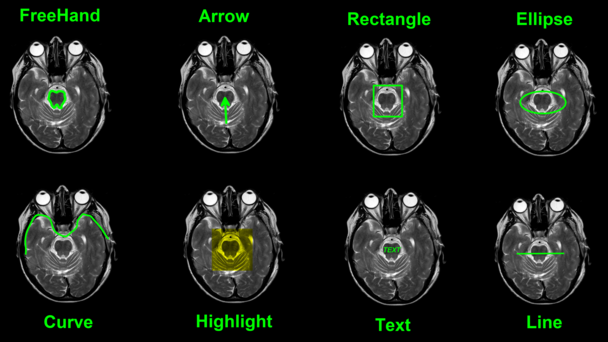
2. A pop-up window will appear with a number of different annotation options to choose from, a basic description of each one is given below:
Select
Click and drag mouse to create an area containing multiple annotations.
Arrow
Click and drag mouse to create arrow head with a tail.
Rectangle
Click and drag mouse to create rectangle.
Elipse
Click and drag mouse to create ellipse.
Curve
Hold in mouse click for first curve, and then click every time the curve angle changes, double-lick to end the curve
Line
Click and drag mouse to create a line.
Freehand
Click and drag mouse to draw freehand region of interest.
Text
Click and drag mouse to create a text box.
Highlight
Click and drag mouse to create highlighted area.
Delete Selected
This will delete the active or selected annoations from the image. Make sure to select the annotations prior to using this option.
Delete All
This will delete all annotations on the image.
3. Select one of the options and then draw the annotation on an image from the image window. A few tips on are given below for using the annotation tools.