Ultima User Guide (c) Copyright by PaxeraHealth Corp. 2021
16.3.3. QI Committee
If there is a discrepancy between the reviewer and verifier for a study, the study will be denoted with a icon to show that it is waiting for the QI committee to make a final review.
There are two methods for the QI committee to review a study:
QI committee review on worklist.
QI committee review on the study viewer.
For the QI committee to conduct a review on the worklist, follow the instructions below:
1. Right click on a study that is waiting to be reviewed by the QI committee (indicated by the icon in the PR column).
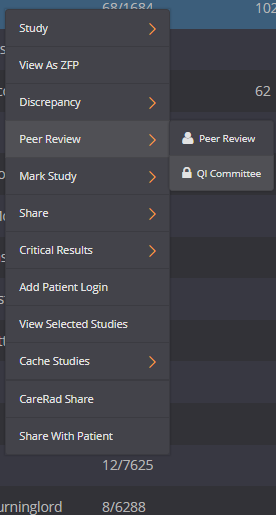
2. A drop-down menu will appear, click on ‘Peer Review’and then ‘QI Committee’.
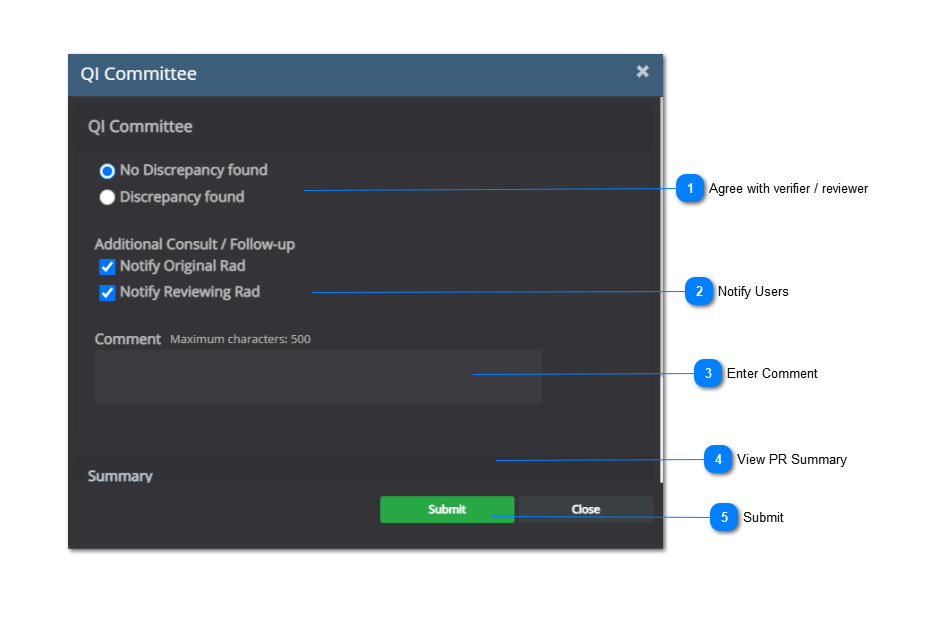
3. A new window will appear. Determine whether the verifier or reviewer is correct and click on 'Submit' when you are done.
4. The study icon in the PR column will be updated accordingly:
to indicate 'Agreed by the Committee' and the verifier made the accurate report.
to indicate 'Disagreed by the Committee' and the reviewer made the accurate report.
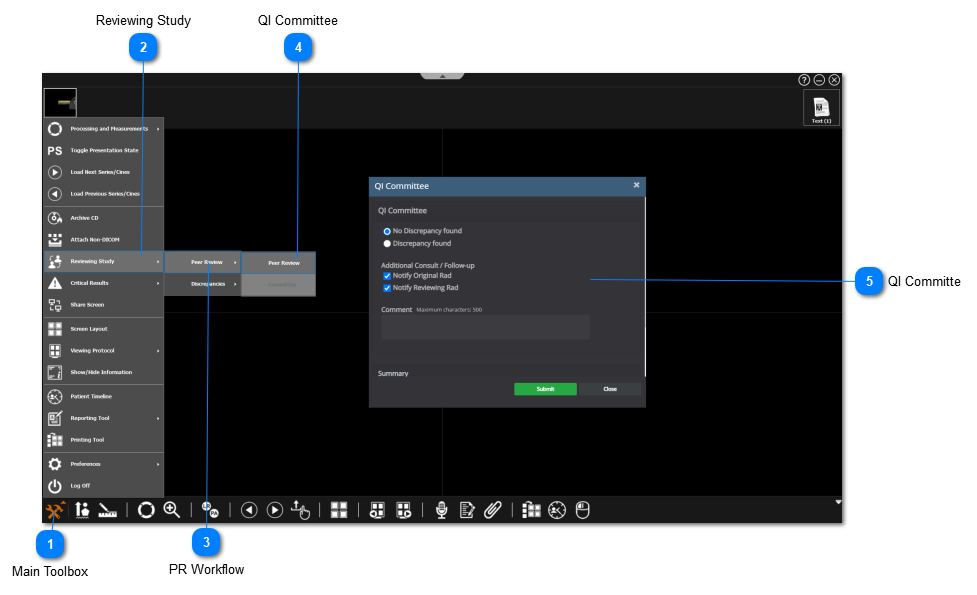
For the QI committee to conduct a review on the viewer, follow the instructions below:
Main Toolbox
Click on the 'Main Toolbox' on the bottom left corner.


 icon to show that it is waiting for the QI committee to make a final review.