There are two methods to conduct a peer review for a study:
-
Conduct a peer review on worklist.
-
Conduct a peer review on the study viewer.
 To conduct a peer review on the worklist, follow the instructions below:
1. Right-click on a study that is waiting to be reviewed (indicated by the  icon in the PR column).
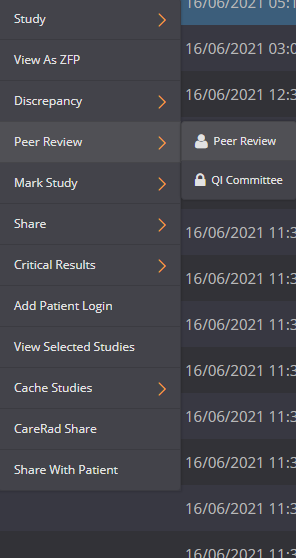
2. A drop-down menu will appear, click on ‘Peer Review’ and then ‘Peer Review’.
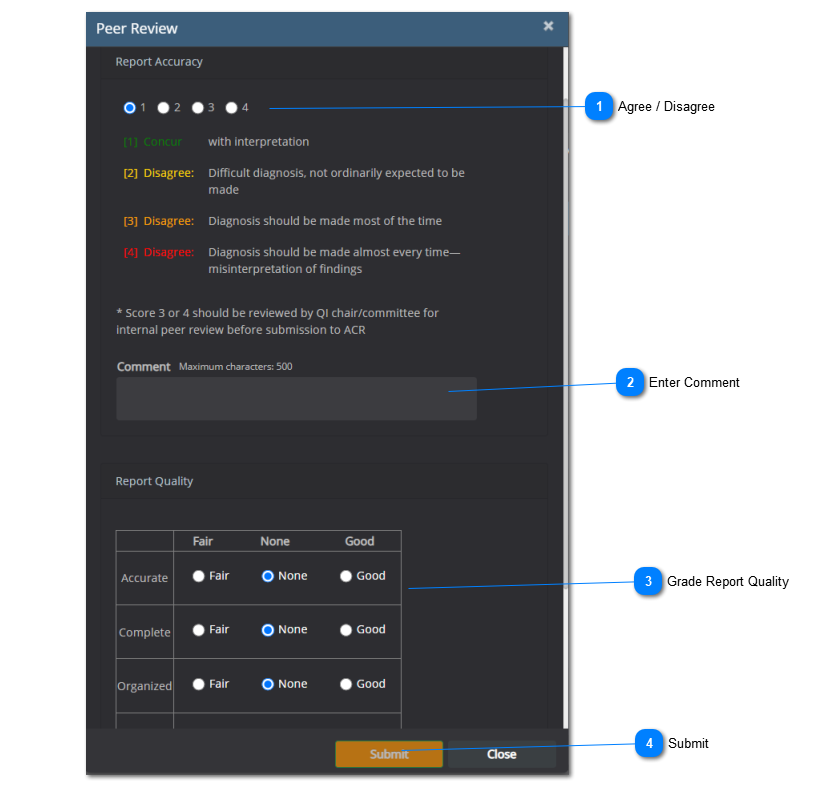
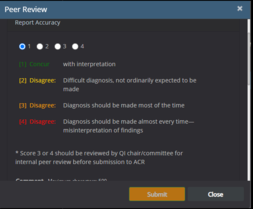
3. A new window will appear. Select the degree of agreement with report accuracy, make a comment on the review, and click 'Submit' when you are done.
4. The study icon in the PR column will be updated accordingly:
-
 to indicate 'Review Not Complete' if there are more users required to make a peer review
 -
 to indicate 'Review Complete' because there is concurrence with the verified report
 -
 to indicate 'Waiting for Committee' because there is a disagreement with the verified report
To conduct a peer review on the viewer, follow the instructions below:
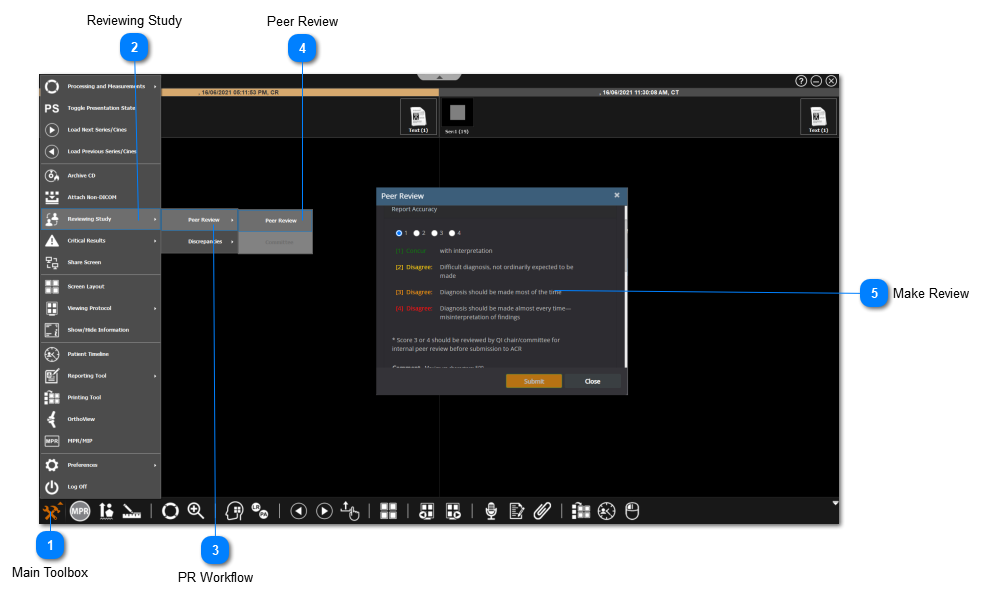
 Main ToolboxClick on the 'Main Toolbox' on the bottom left corner.
|
|
 Reviewing StudySelect 'Reviewing Study' from the drop-down menu.
|
|
 PR WorkflowSelect 'Peer Review' from the list of options.
|
|
 Peer ReviewSelect 'Peer Review' to open the PR menu.
|
|
 Make ReviewRepeat step 3 from the worklist instructions to fill out the PR menu.
|
|