Ultima User Guide (c) Copyright by PaxeraHealth Corp. 2021
15.3.2. Reports Panel
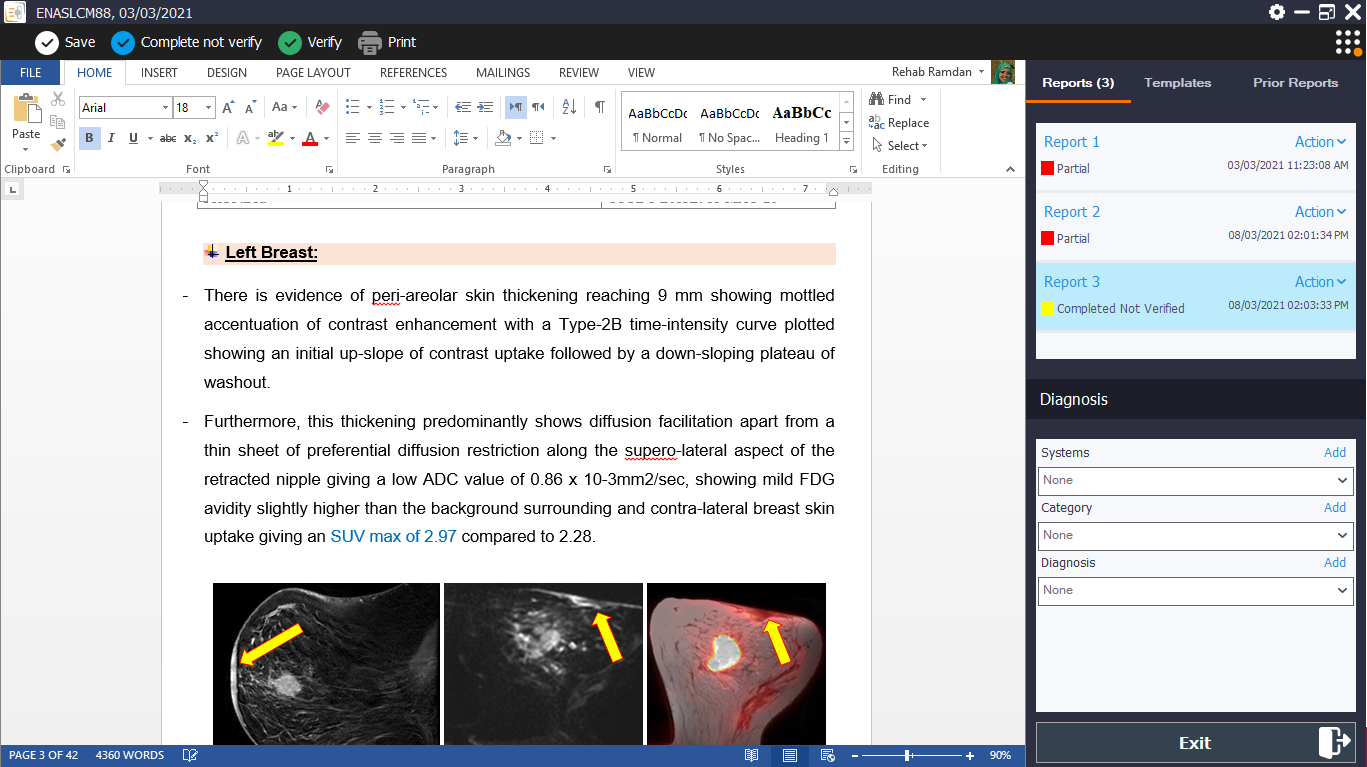
The reports panel enables the user to view, edit, and delete reports. The user can also add a diagnosis, send the report via mail/text message, archive the report, and listen to / record voice notes. An overview of the reports panel is shown below:
Delete report
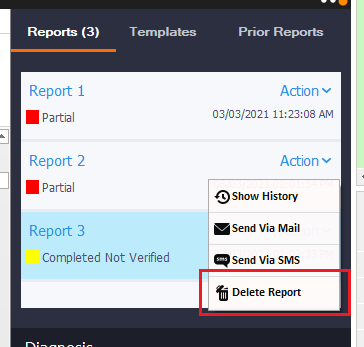
To delete an existing report, follow the instructions below:
1. Select the report of interest from the list of reports
2. Click on the Action then ‘Delete Report’ button. The report will be deleted.
Send report
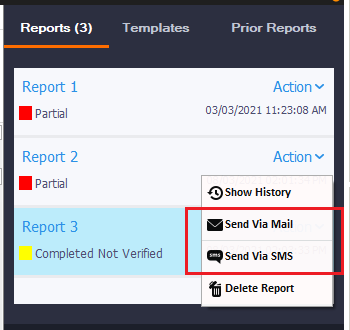
To send a report via email, or text message; follow the instructions below:
1. Select the report of interest from the list of reports
2. Click on Action then Click on the appropriate action ‘Send Via Mail’ or "Send Via SMS".
3. Fill in the necessary information The report will now be sent
The report needs to be verified in order for it to be sent via SMS. The report needs to be saved before it can be sent via mail
Add diagnosis
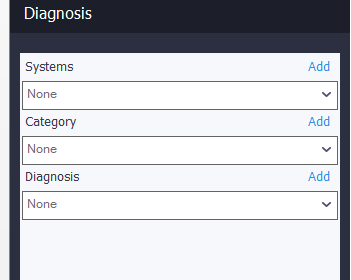
To add a diagnosis description to the report, follow the instructions below:
1. Select an existing option from the ‘System’, ‘Category’, and ‘Diagnosis’ dropdown lists or manually type new ones.
2. Click on the ‘Add Diagnosis’ button. The diagnosis description will now be added to the report