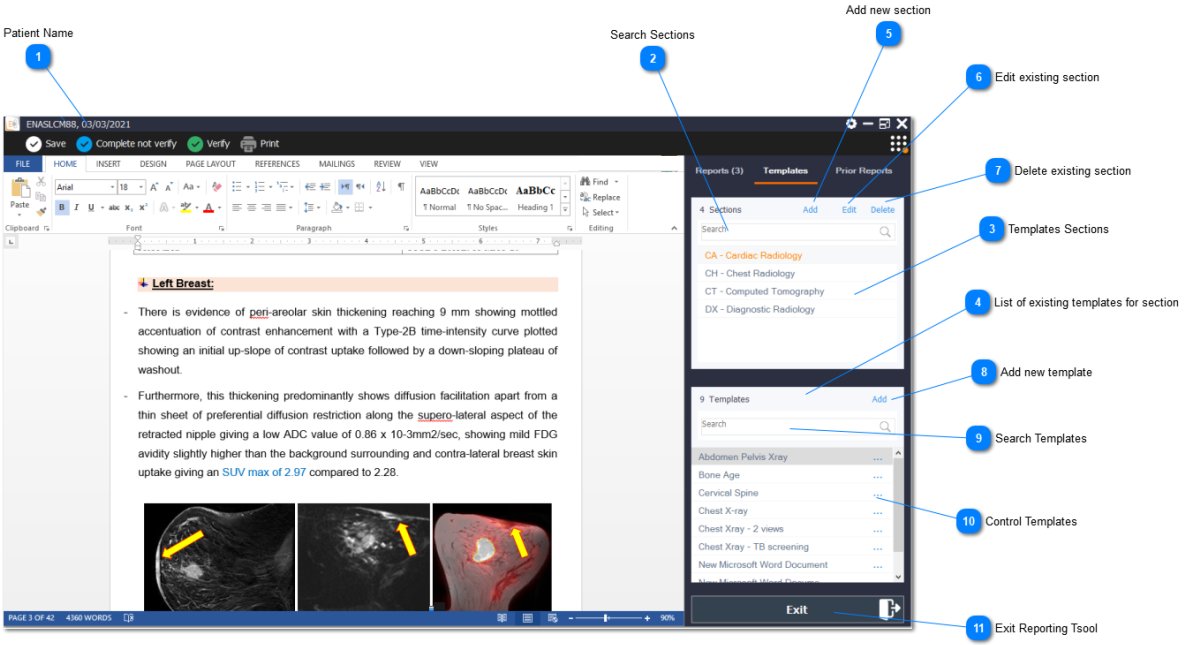
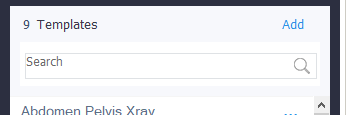
The templates panel enables the user to find, use, edit, add, delete, and replace templates. An overview of the template panel is shown below:
Add new section
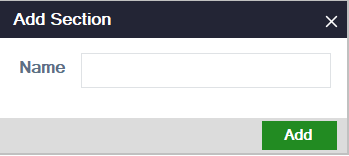
To add new section on the workstation , follow the instructions below:
- In the sections panel, click on the "Add" link.
Edit existing section
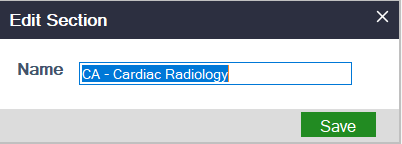
To edit existing section, follow the instructions below:
- In the sections panel, select the appropriate section.
- Click on the "Edit" link.
Delete existing section
To delete existing section, follow the instructions below:
- In the sections panel, select the appropriate section.
- Click on the "Delete" link.
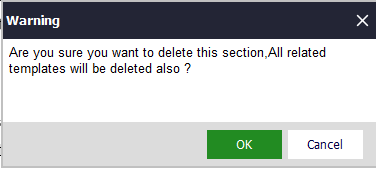
- A new window will appear warning the user that the section will be deleted, click on ‘Yes’. The section and all related templates will now deleted.
Search for sections
To search for an existing section, follow the instructions below:
- In the sections panel, type in the section name in the search bar and click on ‘Search’. The list of sections matching the search criteria will be shown in the Sections list.
Add new template (from file)
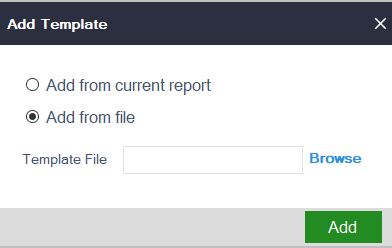
To add a file on the workstation as a template, follow the instructions below:
1. In the sections panel, select the appropriate section that the template should be saved in.
2. Click on Add link in the templates panel.
3. Click on the ‘Add from File’ icon
4. A new window will appear - find the template file of interest from the file browser and click ‘Open’. The template will now be added in the template list.
Create new template (from report document)
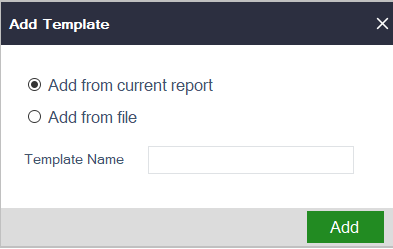
To add the current report document as a new template, follow the instructions below:
1. In the sections panel, select the appropriate section that the template should be saved in.
2. Click on Add link in the templates panel.
3. A new window will appear - type in the name for the new template and click ‘OK’ The template will now be added in the template list.
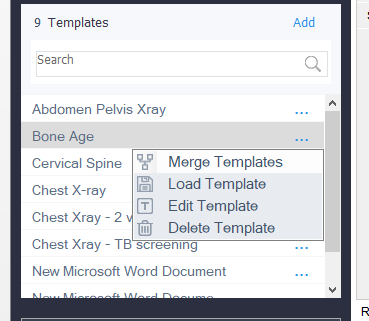
Control templates
1. Merge Templates
2. Load Template
3. Edit Template
4. Delete Templates
Merge template
To merge an existing templat, follow the instructions below:
1. In the sections panel, select the appropriate section that the template is in.
2. In the templates panel, select the appropriate template.
2. Click on the right dots button then click on "Merge Templates"
Load template
To load a template, follow the instructions below:
1. In the sections panel, select the appropriate section that the template is in.
2. In the templates panel, select the appropriate template.
3. Click on the right dots button then click on "Load Template"
Edit existing template
To edit an existing template, follow the instructions below:
1. In the sections panel, select the appropriate section that the template is in.
2. In the templates panel, select the appropriate template.
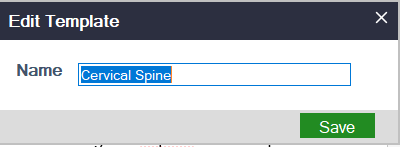
3. Click on the right dots button then click on "Edit Template".
4. Make the necessary changes to the template in the report document.
5. Click on the "Save" button
Delete existing template
To delete an existing template, follow the instructions below:
1. In the sections panel, select the appropriate section that the template is in.
2. In the templates panel, select the appropriate template.
3. Click on the right dots button then click on "Delete Template"
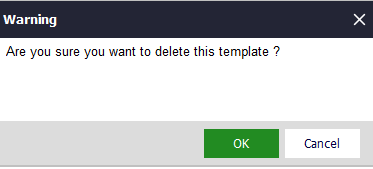
4. A new window will appear warning the user that the template will be deleted, click on ‘Yes’. The template will now deleted.
Search for an existing template
To search for an existing template, follow the instructions below:
1. In the sections panel, select the appropriate section that the template is in.
2. In the templates panel, type in the template name in the search bar and click on ‘Search’. The list of templates matching the search criteria will be shown in the Template list.