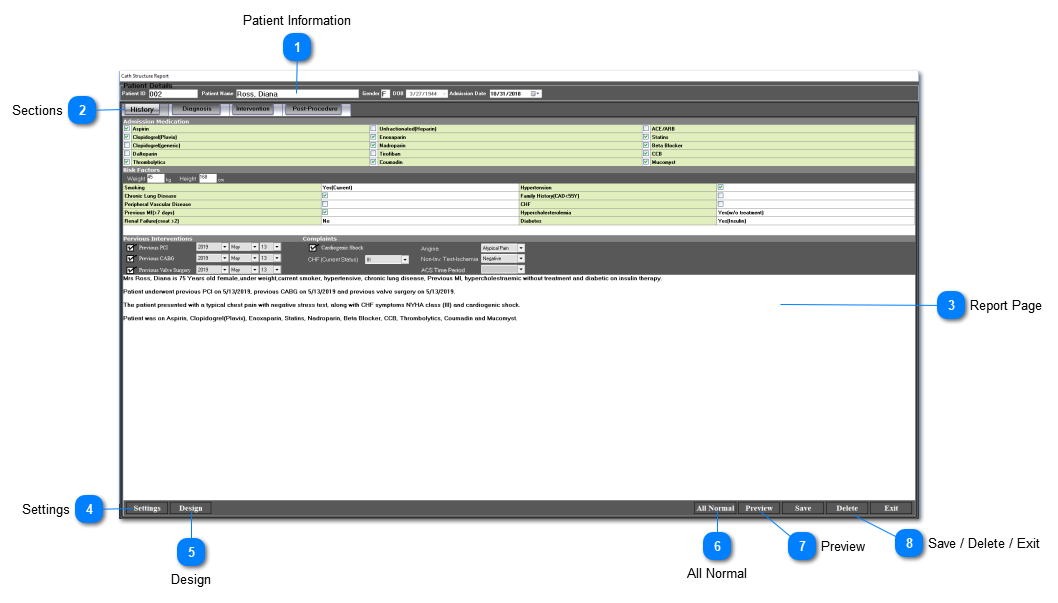
The report sections will vary depending on which type of structured report is open. Each section has a different report page. The user should click on the report section-of-interest in order to fill in the report page.
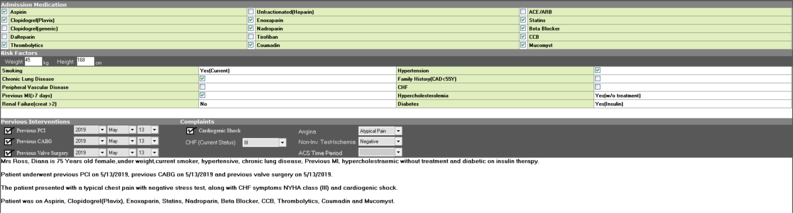
The contents of the report page varies depending on the report section selected. There is a blank space on the bottom of the report page which will be automatically filled as the user completes the report page and selects the appropriate parameters on each page.
Here are general instructions on how to create a structured report:
1. Ensure that the patient details are correct.
2. Click on the report section heading to open the report page for that category.
3. Fill in all the necessary information in the respective report page.
4. Repeat step 2 & 3 for all the report sections that need to be filled in.
5. Click on the ‘All Normal’ button if all the report findings are in the normal range.
6. Click on the ‘Settings’ / ‘Design’ buttons to make advanced adjustments in the report - more details on these functions are given in the later section.
7. Once all the necessary information has been entered in all of the report sections, click on the ‘Preview’ button to ensure that the report has been correctly entered.
8. Click on the ‘Save’ button to save the cath report (this button will only be visible if the ‘History’ report section is open).