6.5.0. Email Anonymized Images
This tool enables you to send annonymized images over email, simply follow the steps below:
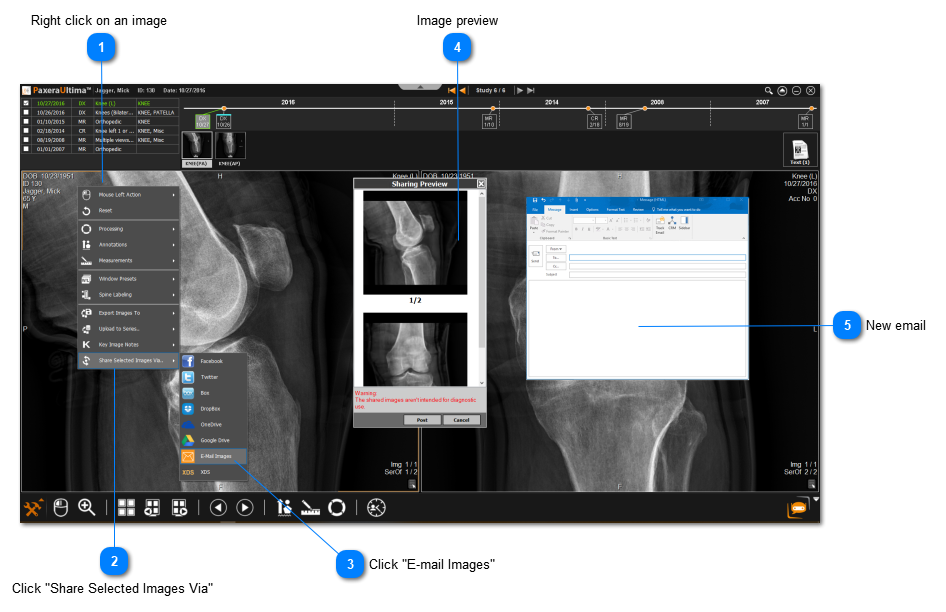
 Right click on an image Right click on the image of interest, or use the 'Ctrl' button on the keyboard to select multiple image windows
|
|
 Click "Share Selected Images Via"
|
|
 Click "E-mail Images"
|
|
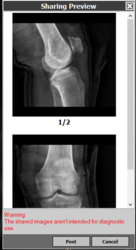
 Image preview A preview of the annonymized images will be shown, when you have confirmed that its correct, click "Post" :
|
|
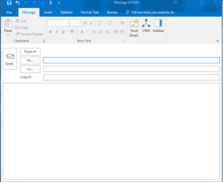
 New email A new email in Outlook will open with the annonymized images added. Type in the email address, subject, and email content before clicking "Send":
Note: you need Microsoft Outlook installed and configured to use this option.
 In compliance with HIPAA, shared images will NOT have any patient info on it (anonymized). In compliance with HIPAA, shared images will NOT have any patient info on it (anonymized).
|
|