5.2.3. Import from Remote Server / DMWL
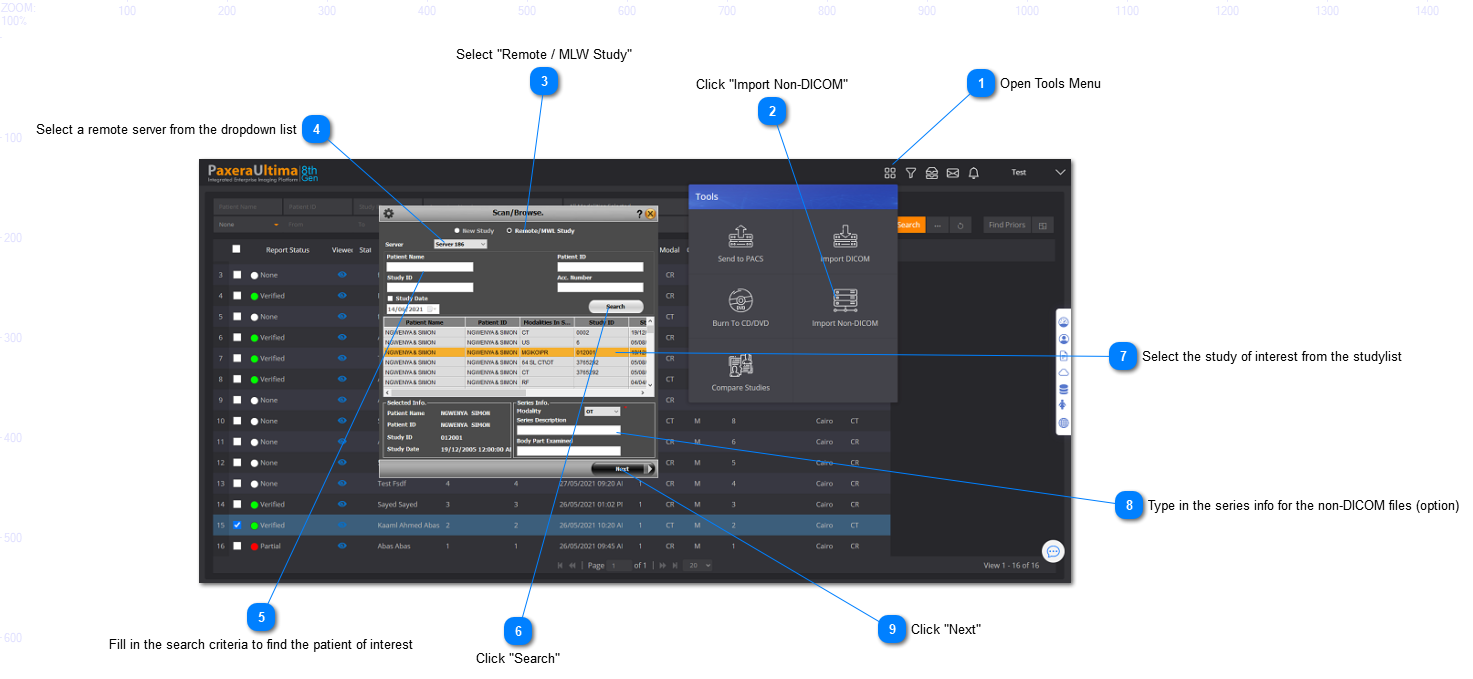
To import a non-DICOM image from a remote server, follow the instructions below:
A new window will appear that enables you to browse / scan in the files of interest:
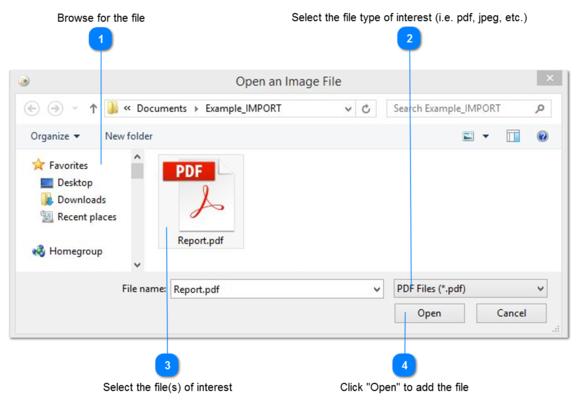
Browse for Files
To add files from a directory, click on the Browse button and find the files of interest to be imported:
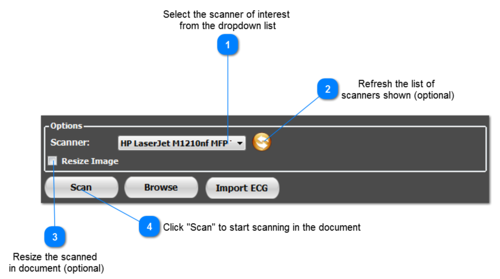
Scan the Files
Supported file formats include: images, videos, PDFs, voice notes, documents, or text file.
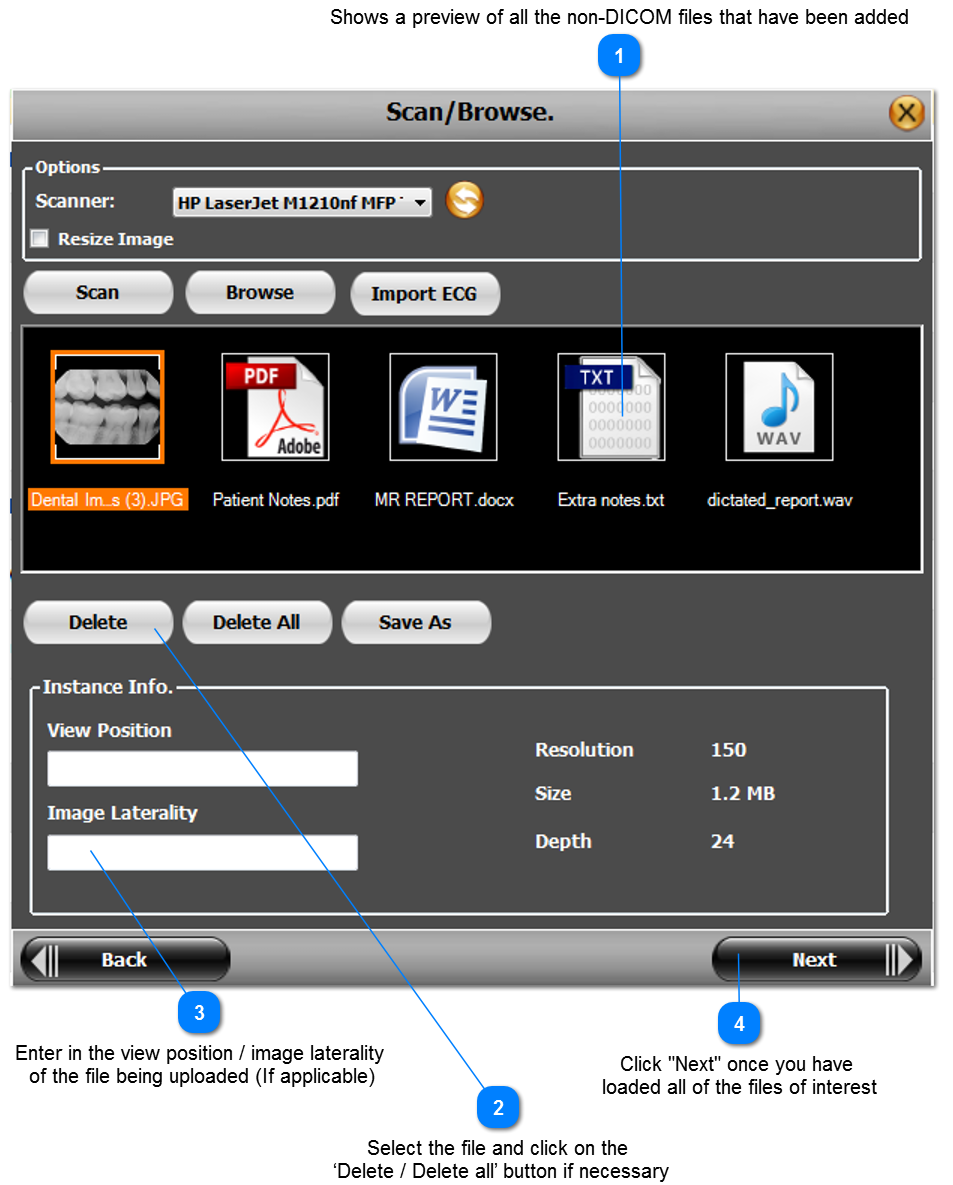
Review files to be imported
Once you have added all of the requied documents (from file / scanner) you can review, as shown below:
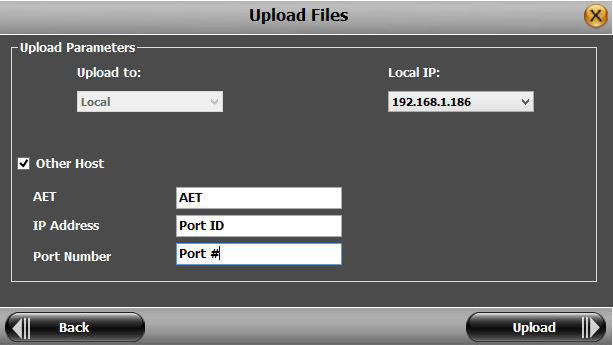
Upload Files
The Upload Parameters window will appear. The user has an option to upload to a local IP, or to another DICOM node:
-
Existing Host: Select the existing host and IP address from the dropdown lists and then click "Upload"
-
New Host: Check the box ‘Other host’, fill in the details which include the AET, IP address and port number , and then click "Upload"
The import non-DICOM process will now be complete and the files will be imported to the host.