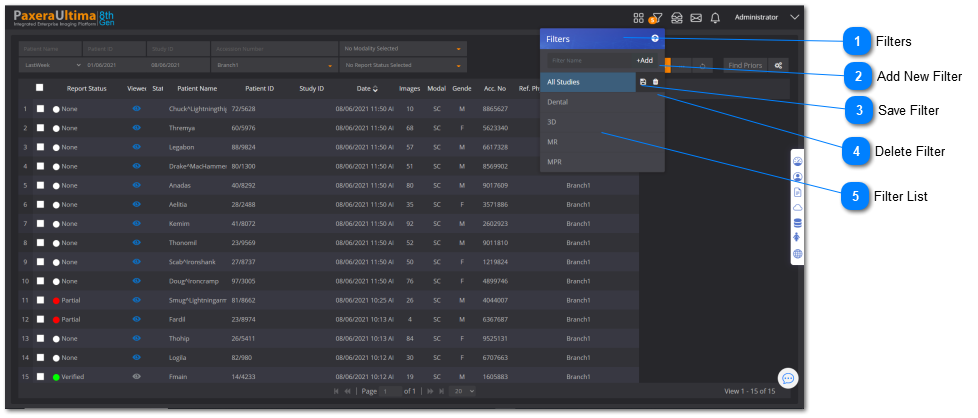
Filters are to setup predefined worklists based on the specified requirements.
Filtered worklists can be accessed easily & set to be loaded by default when you login to your account.
An unlimited number of filters can be made per user and its connected to your user profile.
 Filters Click on the Filters header from the side toolbox to maximize the filters section.
|
|
 Add New Filter Type in the new filter name & click on the "+" to add the filter
|
|
 Save Filter If you have updated any of the search criteria of the filter, click the "Save" button to update the filter
|
|
 Delete Filter Click to delete the filter
|
|
 Filter List Shows a list of all the filters
|
|
Apply a filtered worklist
To use an already existing filter, simply click on of the filter of interest from the filter list:
The resulting studies that match the search criteria's defined in the filter will be shown in the study worklist
Add a filter
To add a new filter:
1. Fill in the search criteria options that need be included in the filter
2. Enter the filter name
3. Click on the ‘Add’ button
The filter will now be added to the filter list for future use.
Edit existing filter
1. Select the filter to be edited
2. Change the search criteria's of the filter
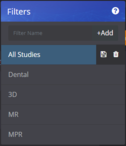
3. Click on the ‘Save filter’ button:
The edits made to the filter will now be saved for future use.
Delete filter:
1. Select the filter to be deleted
2. Click on the ‘Delete filter’ button: