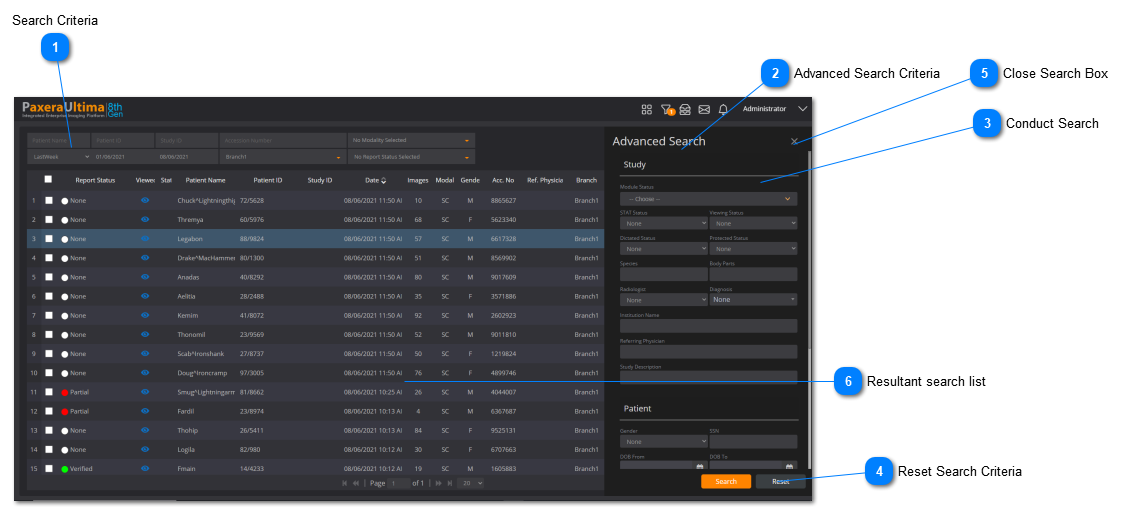
Search using the patient name. If you are only using part of the patient name, make sure to add the "%" in the front so that the system knows to search for anything that contains the characters you entered.
i.e. Searching for "Alton, John":
-- Type in "Alton" to find it
-- Type in "%John" to find it
Patient ID
The patient ID is the unique identifier in the PaxeraUltima. This means that even if the patients name or other information is different - as long as the patient ID matches, it will be in the same patient file and be considered the same patient. Take note: it is important that the "Patient ID" you are using is unique for each patient.
Study ID
This is the studies unique identifier and enables you to search for a specific study using the 'study ID' code.
Accession Number
The accession number is usually automatically assigned to the study at the acquisition station.
Study Date
Search for studies from a certain date. There are a set of standard options (i.e. one day, one week).
Use custom dates to choose any study date range - when you click on this option, 2 calendars dropdown lists will be shown, this indicates the start & end date of the study date range required.
Modalities
Search for studies according to the imaging type. Select multiple studies if required.
Report Status
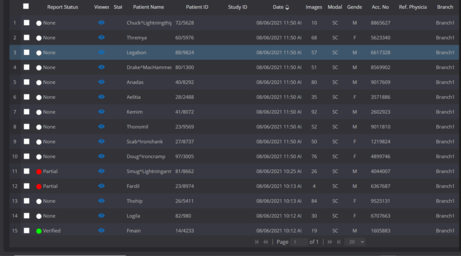
Search for studies with a certain report status, in Ultima, we use 4 statuses for the reporting workflow - 1) No report 2) Partial report (report in progress) 3) Report complete but not yet verified (used in certain workflows where one radiologists overlooks all reports and ensures its correct before final verification. 4) Verified report (final stage of reporting
Referring Physician
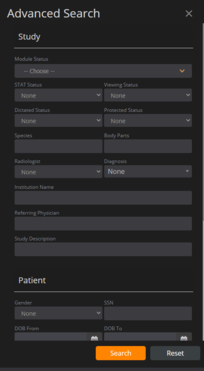
Use the dropdown list to select a referring physician, this list is populated from DICOM tags of incoming studies.
STAT Status
View only studies with STAT status
Radiologist
Use the dropdown list to select a radiologist, this list is populated from DICOM tags of incoming studies.
Gender
Select a gender.
Viewed Status
View studies that have been viewed / not viewed.
DOB from & to
Select a DOB range. If you looking for a specific DOB, select the same date for both from and to.