Ultima360
User guide
×
Menu
Index
2.2.1. Worklist
 
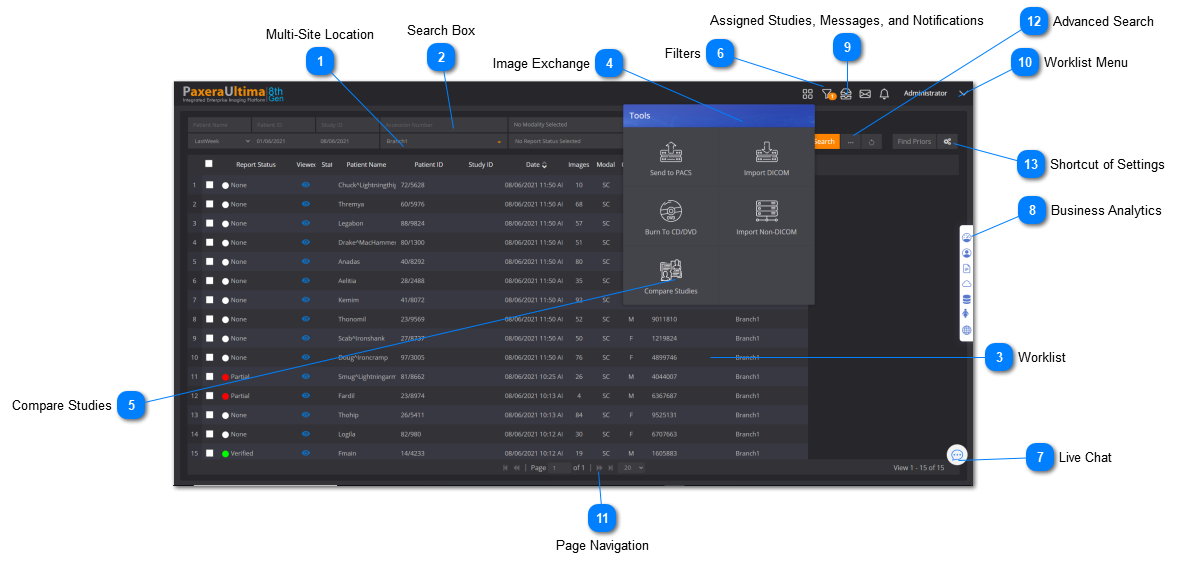
The worklist page is shown when the user logs into the system, below is an overview of what is available from the worklist page:
 
2.2.1. Worklist
 
 
1
Multi-Site Location
1. Multi-Site Location
This is used for facilities with multiple locations. The user can switch between the worklists from the different locations.
 
2
Search Box
2. Search Box
Use the search criteria to search for specific patients / studies, click on the "Advanced" button on the right side to see more advanced search options.
 
3
Worklist
3. Worklist
The worklist shows a list of studies that match either the loaded filter or the search criteria entered into the search box.
4
Image Exchange
4. Image Exchange
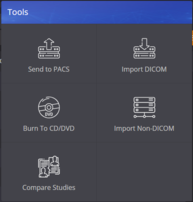
A number of different importing and exporting options:
  • Send to PACS - used to push DICOM studies directly into another PACS, often used if an outside teleradiologist is reading the study
  • Import DICOM - import DICOM studies from a directory or CD, from a number of cloud drives, or using query/retrieve. Includes tools to preview the study before importing and change any of the patient / study info.
  • Burn to CD/DVD - burn studies to a CD or export them to a directly, can include a DICOM viewer on the CD/directory, and can annonymize the study.
  • Import non-DICOM - import non-DICOM to a study, this includes: PDF, jpeg, video files, voice files, etc.
 
5
Compare Studies
5. Compare Studies
Select between 2 - 4 studies from the worklist and click on "Compare Studies" to view them side by side.
 
6
Filters
6. Filters
Filters are used to save a combination of a search criteria so that it be easily loaded on the worklist again.
Example "All CT studies that have not been opened in the last week", "MRI studies with no report", "All studies for a specific referring physician"
 
7
Live Chat
7. Live Chat
The live chat enables you to see all other users on the system, you can start a chat and drag 'n' drop studies into the chat box to collaborate and discuss a case. If there are multiple users online, you can create a group chat.
 
8
Business Analytics
8. Business Analytics
Used to view different types of customized graphs to analyse the workflow within the facility.
 
9
Assigned Studies, Messages, and Notifications
9. Assigned Studies, Messages, and Notifications
Shows notification for assigned studies, messages, and notifications if you are part of the critical results, emergency, or peer review groups.
 
10
Worklist Menu
10. Worklist Menu
The worklist menu gives you access to your profile, Worklist settings, and log out.
 
11
Page Navigation
11. Page Navigation
Enables you to navigate between pages on the worklist and adjust how many studies are shown on a page.
 
12

Advanced Search

12. Advanced Search
Enables you to open advanced search panel
13

Shortcut of Settings

13. Shortcut of Settings
Enables you to control quick settings from worklist page like Columns selection and Viewer Settings