14.2.0. PACS Administrator
The PACS administrator tool is used to configure the communication between different modality acquisition stations. To access and learn about the PACS admin, follow the instructions below:
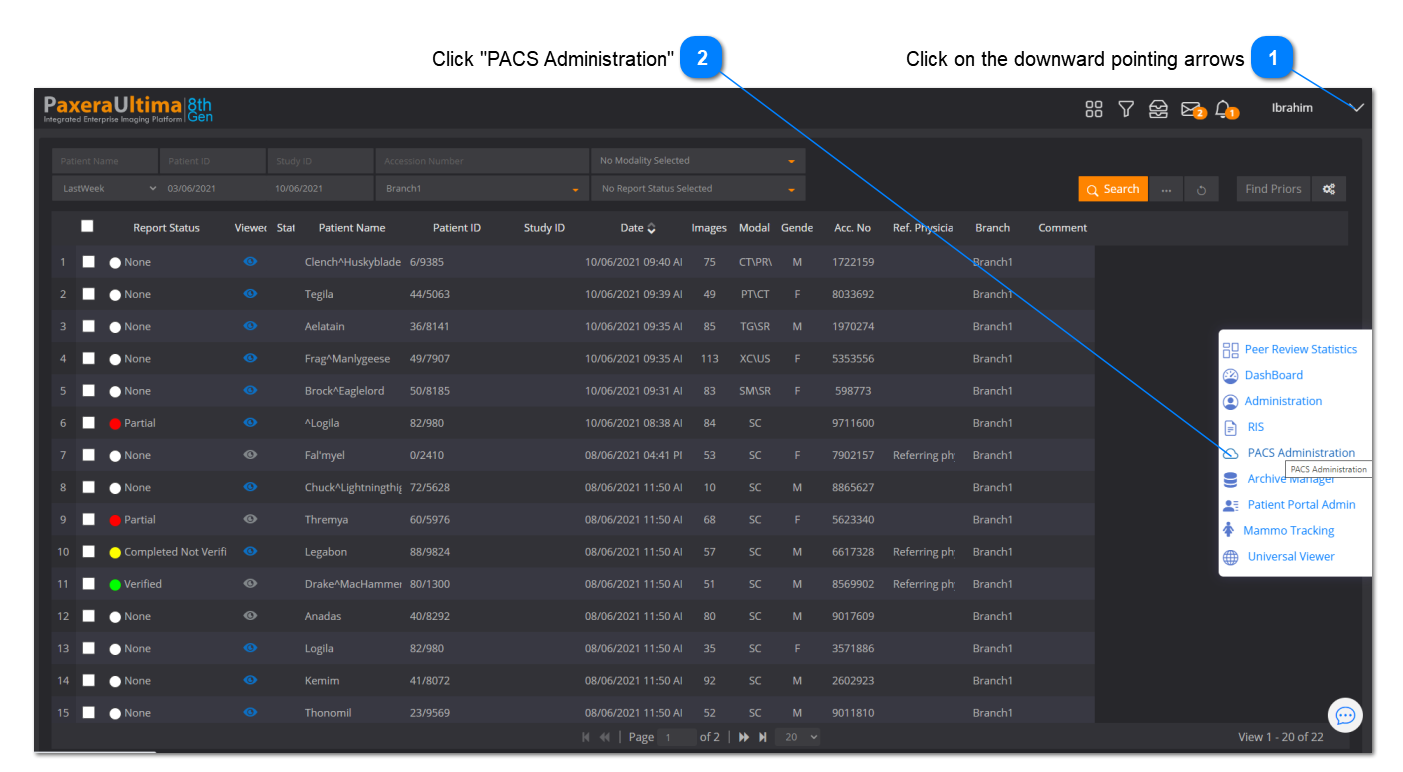
1. Click on the ‘ Arrow ’ button located in the top right corner of the worklist screen, and then click on ‘PACS administration’:
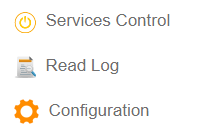
The main PACS admin page will load. On the left hand side of the PACS admin page is a navigation panel to access the different tools, an overview of these tools are given below:
-
Services / Control - to view a status and control any PACS services
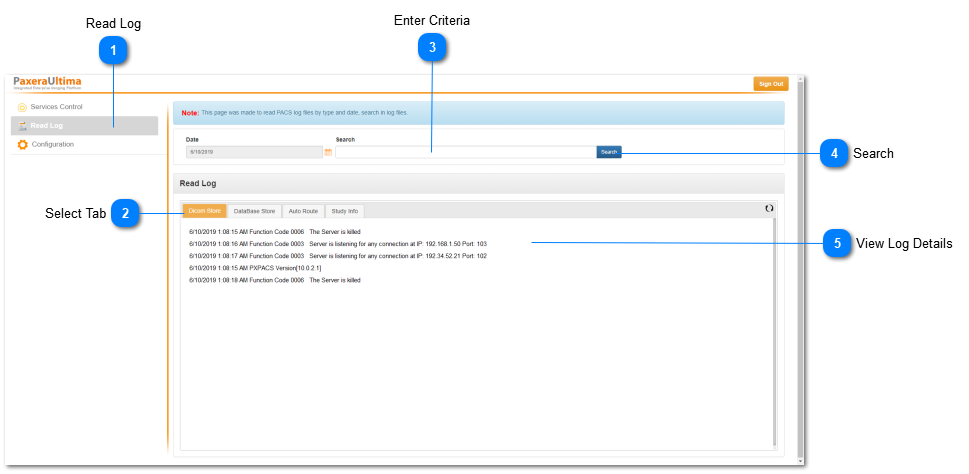
• Read log - to read PACS log files by type and date. This includes DICOM store, database store, auto route, and study info.
• Configuration - used to configure the PACS.
The user needs to ensure that the PACS has been configured successfully before any service, control, or log information can be accessed. Instructions for the configuration and use of the PACs admin are given below.
Configuration
Instructions on how to configure the PACS are given below:
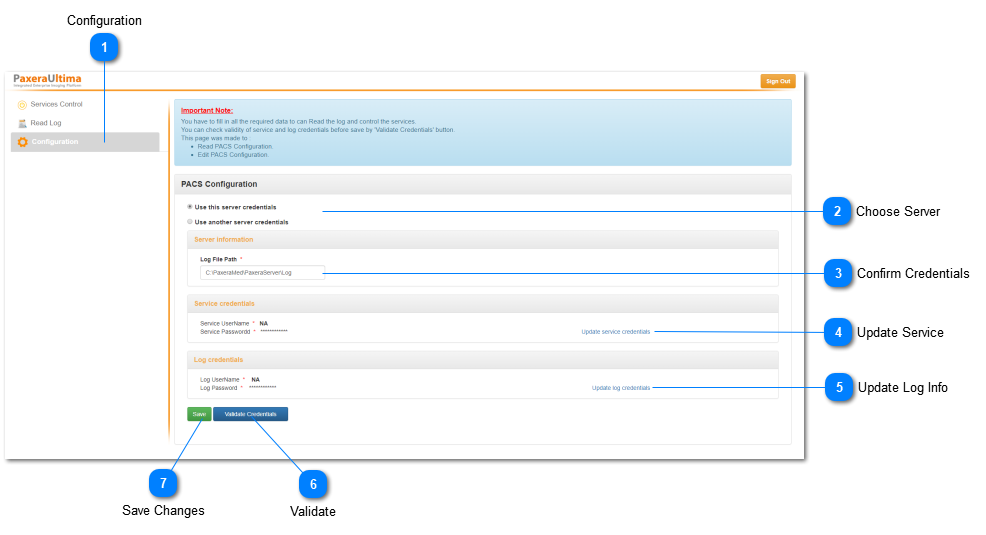
1. Click on ‘Configuration’ from the menu
2. Choose to use either this or another servers credentials
3. Ensure that the server credentials are correct
4. Update the server and/or log credentials if necessary
5. Click on the ‘Validate credentials’ button to ensure that the credentials are valid, if successful, a message will be displayed as follows: 
6. Click on the ‘Save’ button to ensure all changes to credentials are saved.
Service & Control
Instructions on how to use the service and control features of PACS admin are given below:
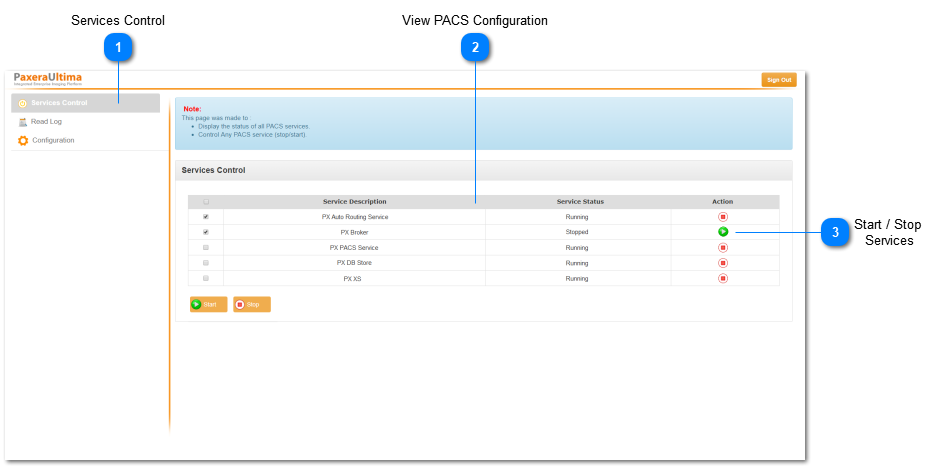
1. Click on ‘Service Control’ from the menu
2. View the PACS configuration information
3. Click on the start/stop button to control any of the PACS services.
Log
Instructions on how to use the log features of PACS admin are given below:
1. Click on ‘Log’ from the menu
2. Select the log tab of interest
3. Enter the date for the log, and a search criteria if necessary.
4. Click on the ‘Search’ button.
5. View the log details.