Ultima User Guide (c) Copyright by PaxeraHealth Corp. 2021
10.7.0. MG Structured Report
To learn how to create a MG structural report, follow the instructions below:
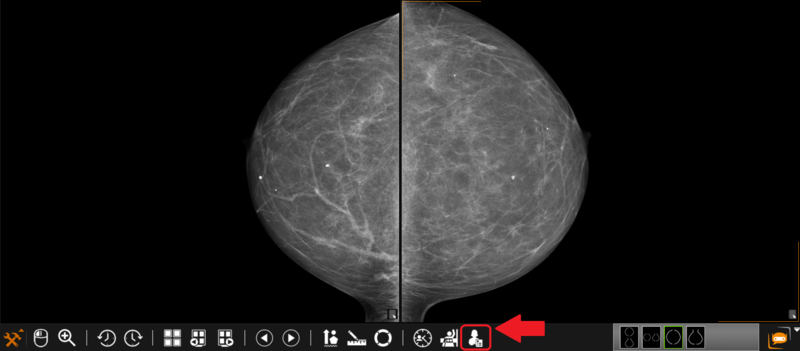
1.Click on the ‘Structural MG report’ button located on the toolbox panel:
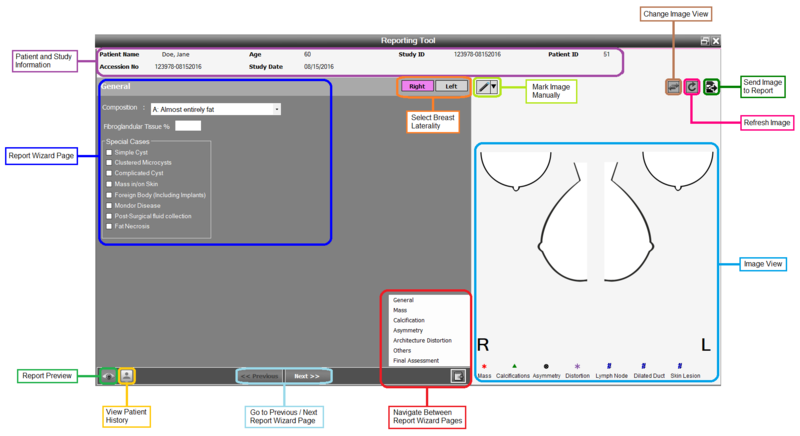
2.A new window will appear, an overview of it is given below:
Patient & study info: contains basic information about the patient and study.
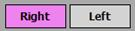
Report wizard page: used to create the structured report. There are 7 different pages to report findings. All pages are optional except 'Final assessment'; other pages may be mandatory depending on the findings. The user needs to select the left / right breast for each finding prior to entering appropriate information on the report wizard page .
General
Mass
Calcification
Asymmetry
Architecture distortion
Others
Final assessment
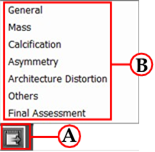
Report wizard navigation: used to navigate between pages (there are two methods).
Previous and Next buttons
Navigation button
Image view: used in conjunction with the report wizard page and enables the user to create a visual representation of the finding.
Change image view: there are two different views available, the user can switch between these views by clicking on the button:
Refresh: used to refresh the image view:
Send to report: the user can send either or both views to the report, simply check the button for the view(s) of interest:
Mark image: the user can add manual markings to the image view using the pen tool .
View patient history: the patient history can be viewed by clicking on the icon .
Report preview: the report can be previewed by clicking on the icon .
Final assessment page: the 'Next' button will become a 'Save' button as shown here to save the the final report.


 .
.


 .
. .
. .
. to save the the final report.