Ultima User Guide (c) Copyright by PaxeraHealth Corp. 2021
10.1.0. CAD Menu
The computer aided detection (CAD) file is a DICOM SR file that contains abnormalities found in the images. CAD files are obtained from the modality and received on Ultima.
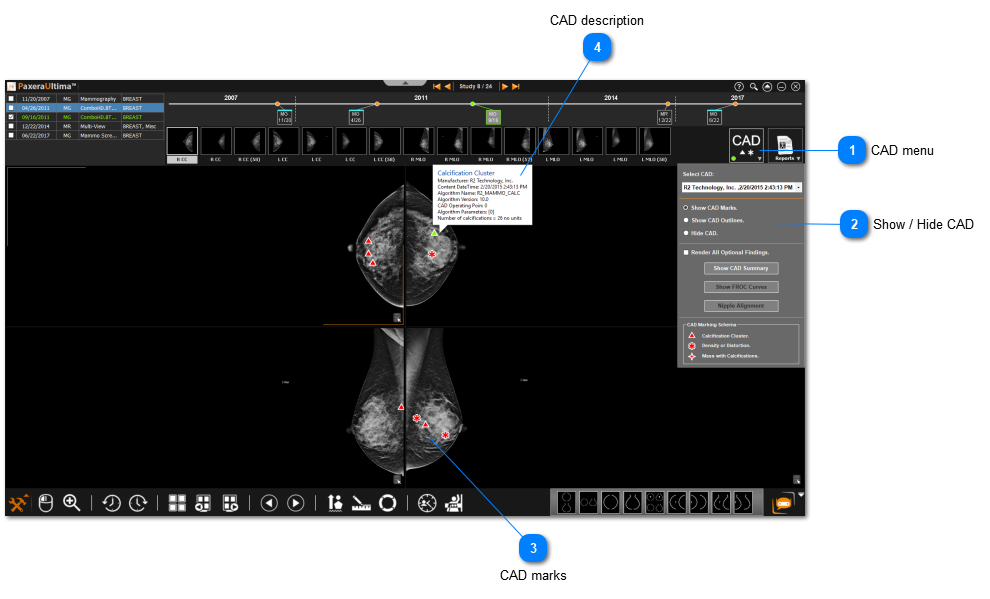
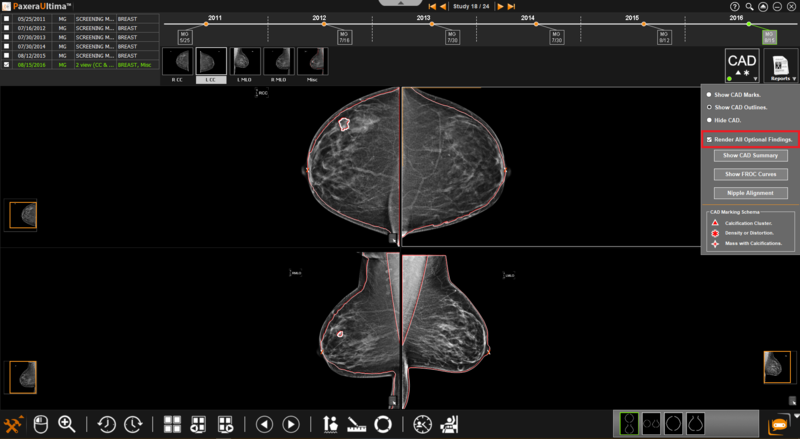
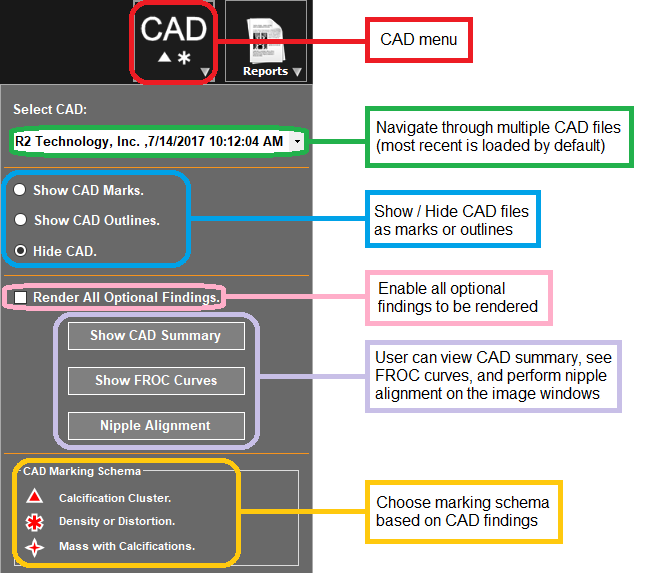
An overview of the CAD menu is given below. To access it, simply click on the ‘CAD menu’ button in the top right corner of the study viewer:
When CAD findings are turned on, the CAD menu will display a green light: .
When CAD findings are turned off, the green light will be absent on the CAD:
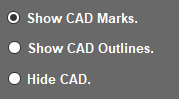
To show / hide CAD files as either marks or outlines, follow the instructions below:
CAD menu
Click on the CAD menu on the top right corner of the series panel adjacent to the report icon.
The render all optional findings will draw the outline of the breast, align the nipples, and show any measurements conducted. If checked all findings, the operating point greater than 0 and optional findings will be displayed.


 .
.